Organization management via Flowstate
This page provides a comprehensive guide to managing your organization, covering everything from member roles to new user invitations.
Select your organization
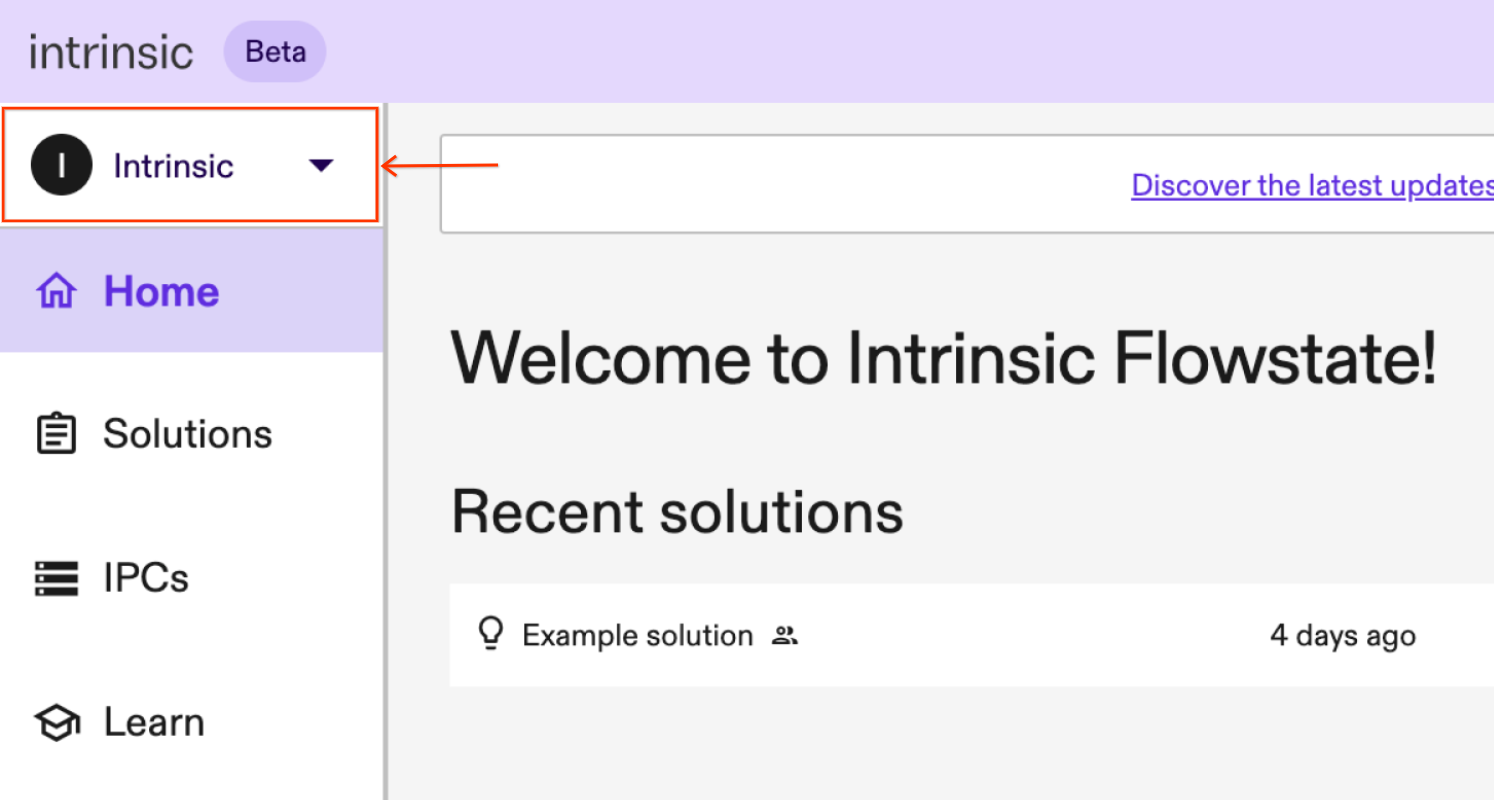
If you belong to multiple organizations, make sure you select the organization you want to work with. You can do so using the dropdown at the top of the sidebar.
Managing members (Admins only)
All users can view the email addresses of members in their Organization; however, only admins can manage the users in an Organization.
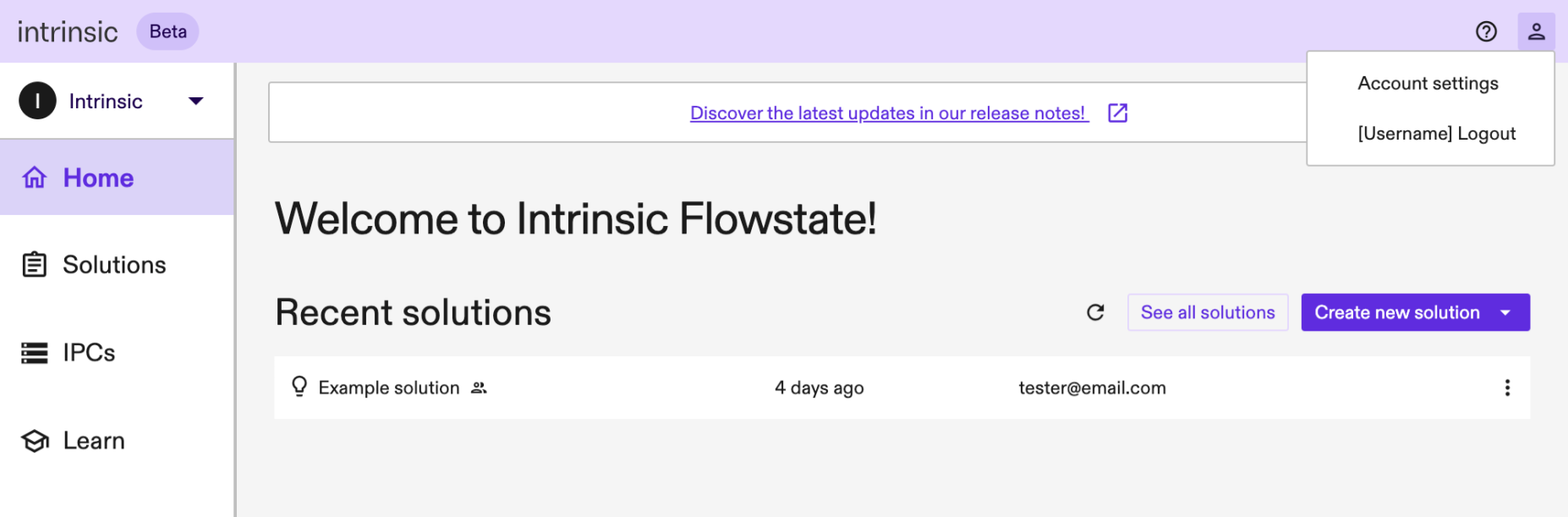
To edit the members in your organization: Click the person icon (Accounts) in the upper right corner, and select Account settings.
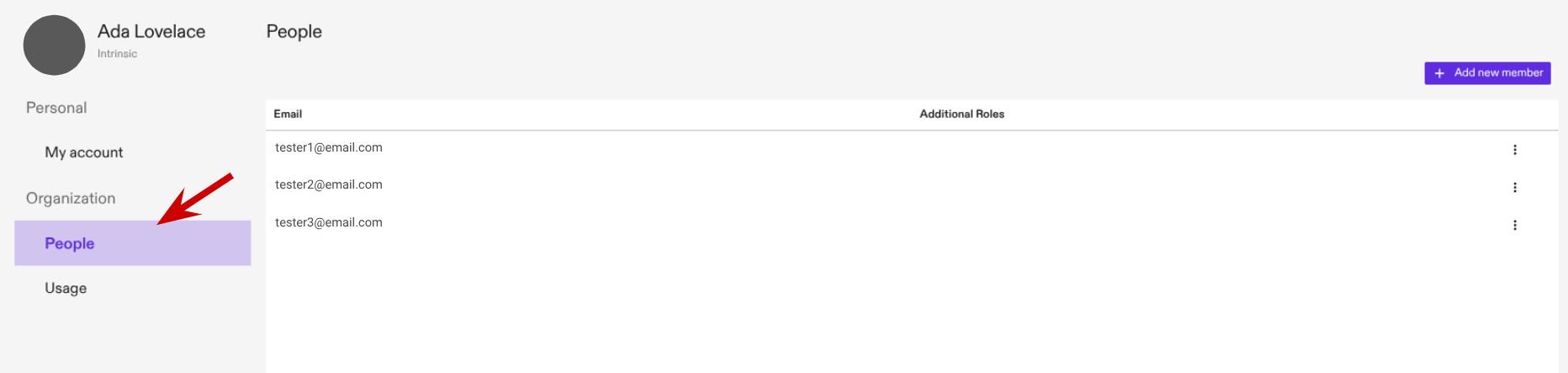
Then click on People to see the active members of your organization.
Edit existing member roles
Active members in your organization can have different roles, allowing you to delegate specific permissions for resources.
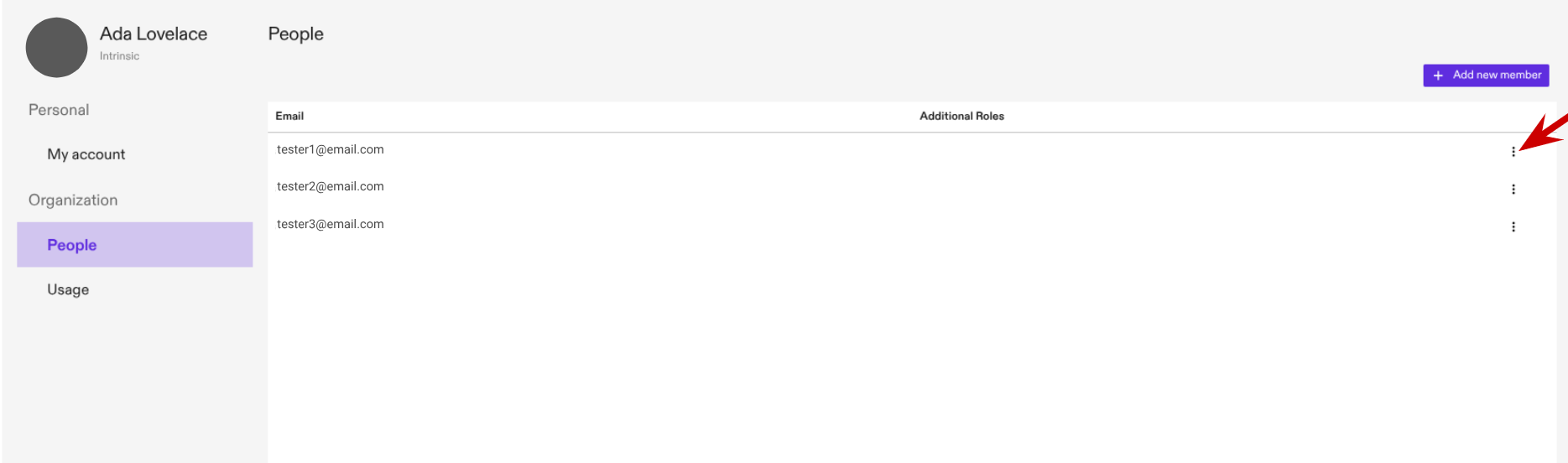
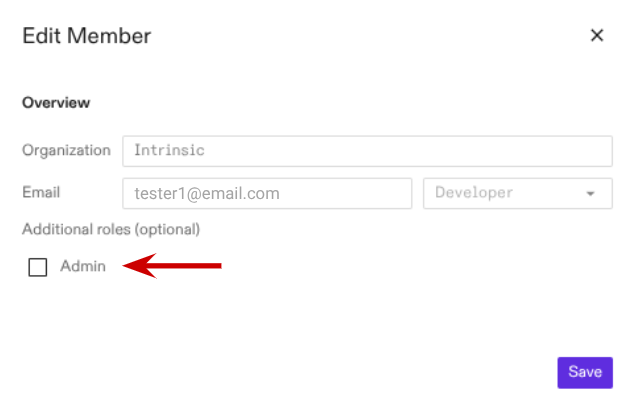
Currently, all new members are assigned the Developer role by default, and you can optionally add the Admin role to them. Admins can invite new members and manage permissions.
Add new members to your organization
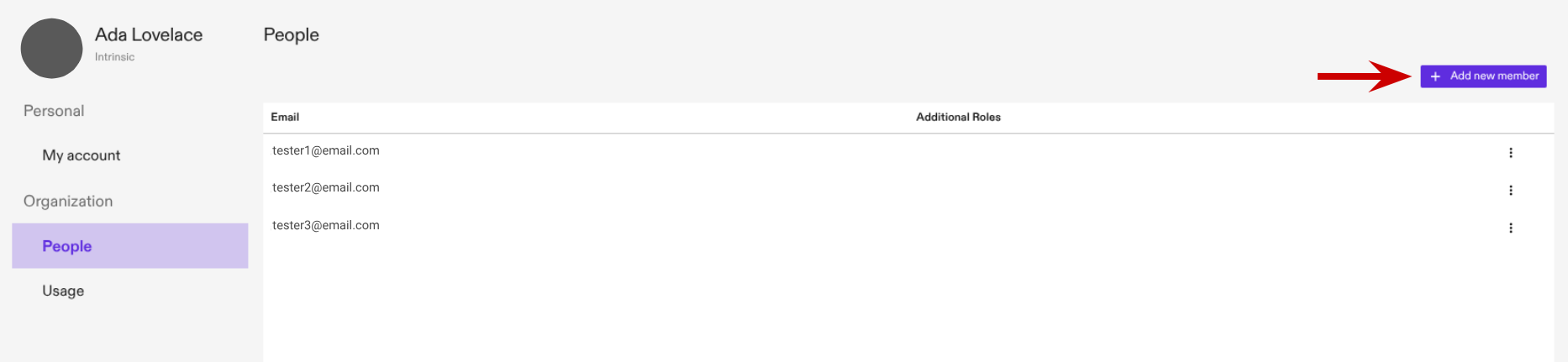
To add a new member to your organization, click the Add new member button in the upper right corner and complete the form that appears. Then, click invite to send the invitation. The system will send an email with registration instructions to the specified email address.
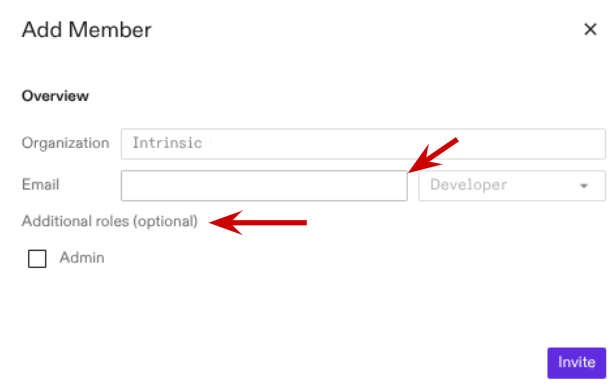
If you want to invite a user as an Admin, check the box for the Admin role in the Additional roles (optional) list before clicking Invite.
See pending invites
After you add a new member, they must accept the invitation. While you are waiting for them to join, the pending invite will be visible in the member list.
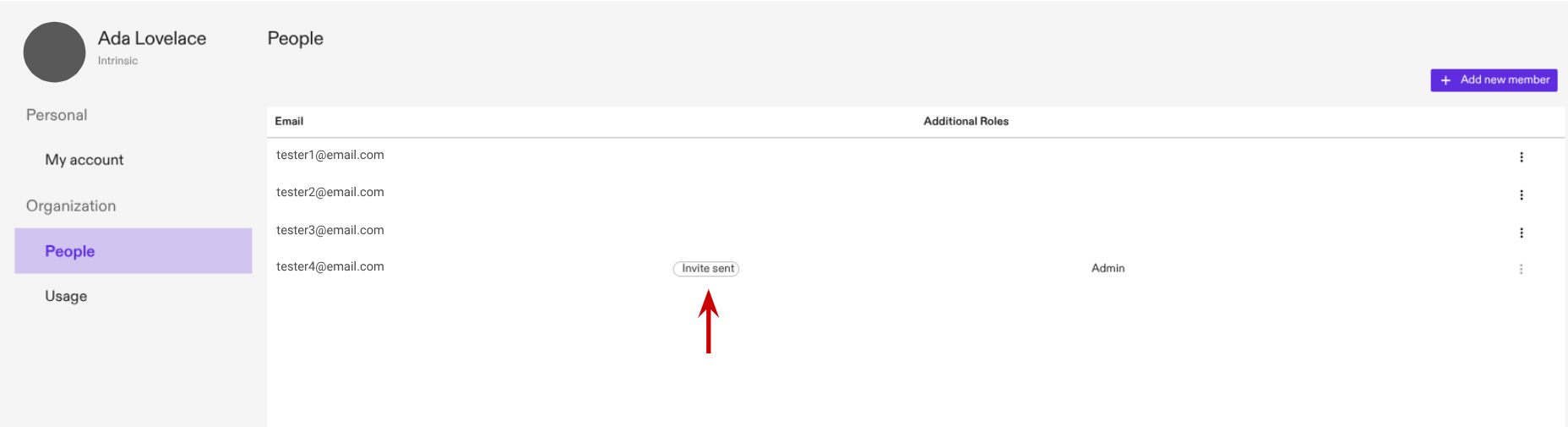
Only admins can see users with a pending invitation.
Resend an invitation
Members get an email with instructions on how to join the organization once they are invited. You can resend this email by clicking on the Resend Invitation button inside the member actions menu (see editing a member).
Withdraw an invitation
Pending invitations can be withdrawn. Once the invitation is withdrawn, the invited user won't be able to join the organization with the instructions they received in their email.
To withdraw an invitation, locate the member with the pending invitation in the list and click on its action button (see editing a member). Click then on the Withdraw Invitation button of the dropdown menu.
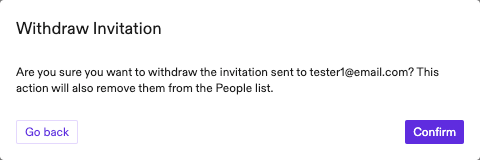
A confirmation dialog will appear, asking you whether to withdraw the invitation or not. Click Confirm to withdraw the invitation or Go back if you wish not to proceed. Once the invitation is withdrawn, the email will be removed from the People's list, as it won't be part of your organization.
Only admins can withdraw a pending invitation.