System Service State
Service with a capital 'S' will represent an Intrinsic Service and service with a lowercase 's' will represent RPC service.
State of a Service
A State of an Intrinsic Service refers to the operational state of a Service
instance in a solution. A Service instance will have one of the 4 following
state codes during its lifetime in the solution:
STATE_CODE_ENABLED: Indicates that a Service can be interacted with. The Service can accept associated API requests.STATE_CODE_DISABLED: Indicates that the Service does not allow interaction with any of the functionalities and APIs it provides, except a call to Enable the Service.STATE_CODE_ERROR: Indicates that the Service is in an error state, and that any or all API requests may fail.STATE_CODE_STOPPED: Indicates that the Service is not running or consuming any compute resources. It is incapable of accepting API requests.
The overall State message is as seen below:
message State {
  enum StateCode {
    STATE_CODE_UNSPECIFIED = 0; // An unused default.
    STATE_CODE_ERROR = 1;
    STATE_CODE_DISABLED = 2;
    STATE_CODE_ENABLED = 3;
    STATE_CODE_STOPPED = 4;
  }

  // Current state code of the running Service instance.
  StateCode state_code = 1;

  // Optional explanation for the current Service's state, unless the Service
  // is in STATE_CODE_ERROR. When in STATE_CODE_ERROR, this field includes
  // information on what and/or why the Service failed and how to resolve the
  // failure state.
  optional intrinsic_proto.status.ExtendedStatus extended_status = 2;
 }
The State is determined by a combination of inspecting the Kubernetes
container running the Service, and querying the optionally implemented
ServiceState of the Service to get its
self-reported state, or SelfState.
An Intrinsic Service that does not report SelfState, will be in
STATE_CODE_ENABLED by default, if the kubernetes container running the Service
is healthy.
See Implementing ServiceState
on how you can configure your Services to report SelfState.
Visualizing and managing states
The system service state gRPC API, which allows viewing and managing the states of Service instances running in a solution, can be accessed through the Flowstate Editor or the command line interface.
Service manager dialog
Managing the state of an Intrinsic Service can be done through the Service Manager dialog. In the Flowstate Editor, navigate to the top toolbar and select *File > Service Manager. The dialog that appears will look like this:
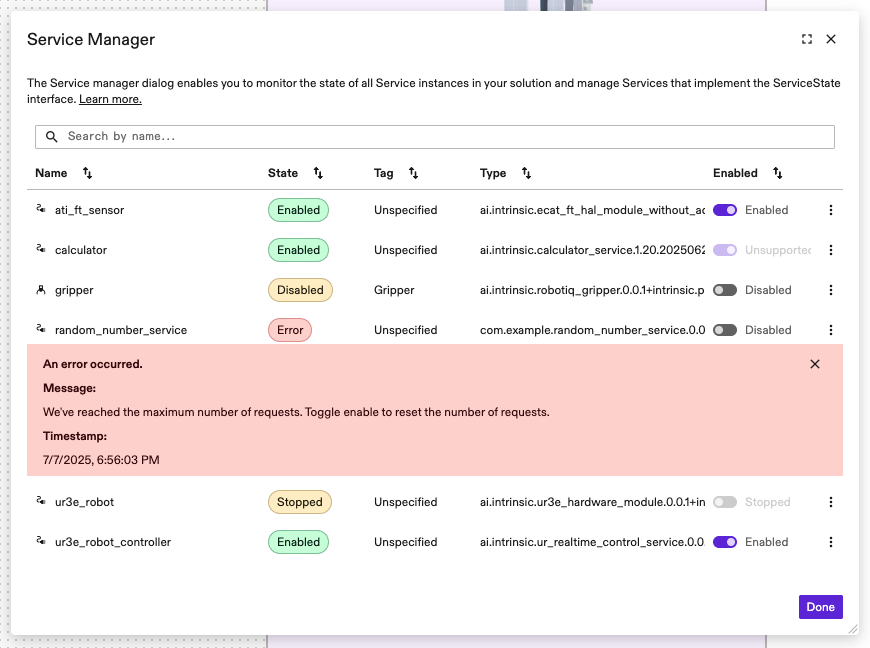
For each row in the table, there is a toggle switch that can be used to enable
or disable the Service. If the Service does not implement ServiceState, this
toggle will be grayed out, and will show Unsupported. If the switch is active
and currently set to 'Disabled', toggling it will attempt to enable the Service.
Conversely, if it is set to 'Enabled', toggling the switch will attempt to
disable the Service.
If the Service implements ServiceState, enabling the Service while it is
errored, may attempt to clear any underlying errors of the Service, depending on
the implementation of the Enable() RPC by the Service author. Note, however,
that not all errors can be cleared by attempting to enable the Service. Services that are
errored due to failures in its kubernetes container, for example, cannot be
cleared this way.
In the Service Manager dialog, each listed Service includes a button on the far
right that opens a context menu. This menu provides an option to restart the
Service. Selecting it triggers the RestartService() API, which attempts to
restart the corresponding Kubernetes container.
The Service will be temporarily unavailable during a restart, and any ongoing work in it will be interrupted.
Command line interface
The command line interface is provided through inctl. Run the following in
your terminal to see a full list of system service state commands:
inctl service state --help
The states of all Services in a solution can be listed by:
inctl service state list --org=<org> --solution=<solution--id>
This will return a condensed view of the states of all Services in a solution.
Optionally, you can specify --output=json in the command to get a more
descriptive view for each Service.
To get the state of a single Service instance, use:
inctl service state get <name> --org=<org> --solution=<solution-id>
As before, specify --output=json in the command to get a descriptive view of
the state of the required Service instance.
Services can be enabled/disabled/restarted by:
inctl service state {enable|disable|restart} <name> --org=<org> --solution=<solution-id>
Accessing through code
The system service state gRPC service can be also accessed through code. This may be particularly useful for displaying the states of Services running in a solution through an HMI service. A code based example for an HMI service that uses the system service state API can be seen in our example on Github.