GitHub Codespaces
GitHub Codespaces is a commercial GitHub offering that allows developers to run development environments in the cloud.
GitHub Codespaces is a paid service and you, or your organization, will be billed to use it. To learn more about pricing for GitHub Codespaces see the GitHub Codespaces pricing documentation. To avoid charges associated with using GitHub Codespaces, you have the option to set up a local environment.
Create GitHub repository
GitHub Codespaces requires an existing GitHub repository.
To create a new repository:
-
Open the create new repository link.
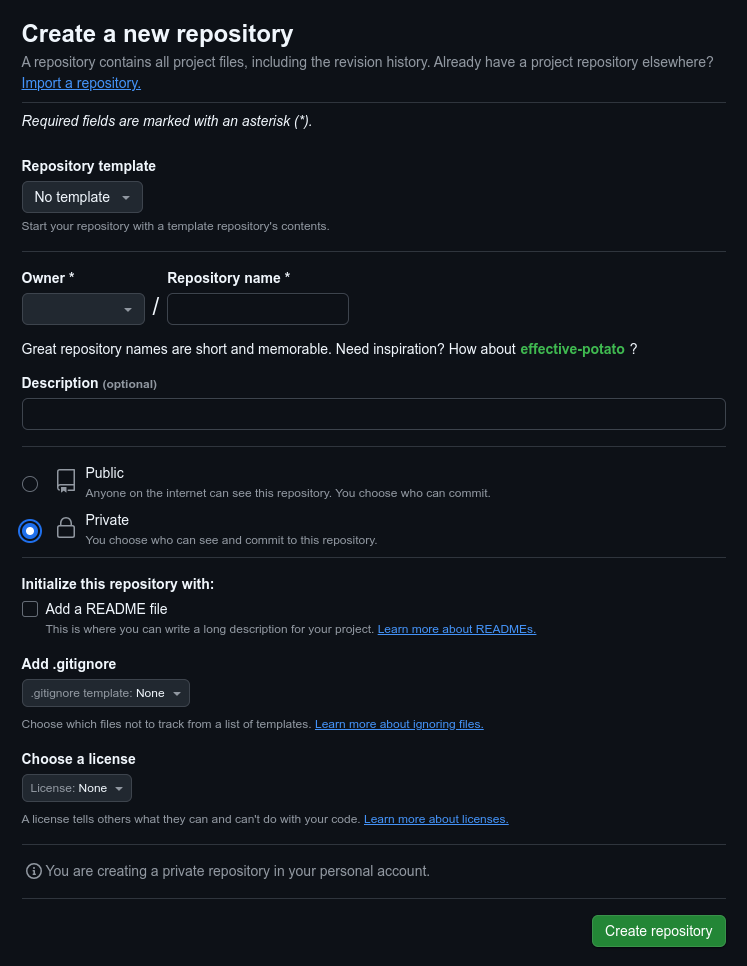
The browser displays the GitHub page to create a new repository:
-
On the page, select a value for the
Ownerdropdown box. This will be the owner of the repository to be created and can be you or any organization you belong to. -
Enter a name for the new repository in the
Repository nameedit box. -
Select the
Privateradio button to make the new repository private. -
Click the "Add a README file", as Github codespaces cannot be set up on empty repositories.
-
Click
Create Repositorybutton to create the new repository.GitHub creates the new repository and directs the browser to the page for the new repo.
Set up a GitHub Codespaces virtual machine
To use GitHub Codespaces,
- Navigate to your GitHub repository (such as the repository created in the previous section)
- Click the
<> Codebutton to open a dialog - Select the
Codespacestab - Click the ellipsis icon (
...) to configure the VM
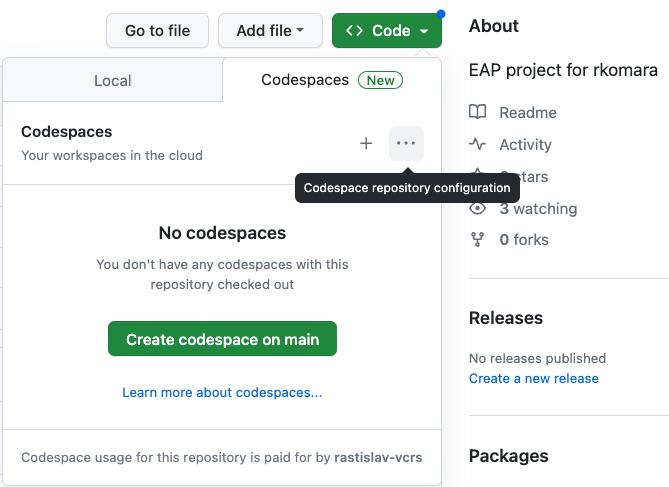
- Click the
New with options...menu item - Select a larger VM on the customization screen, either 8-core (minimum) or 16-core (recommended)
GitHub offers several tiers of virtual machines. The default Codespaces VM has only two cores (2-core). To get the best experience during skill development, we recommend using a 16-core virtual machine.
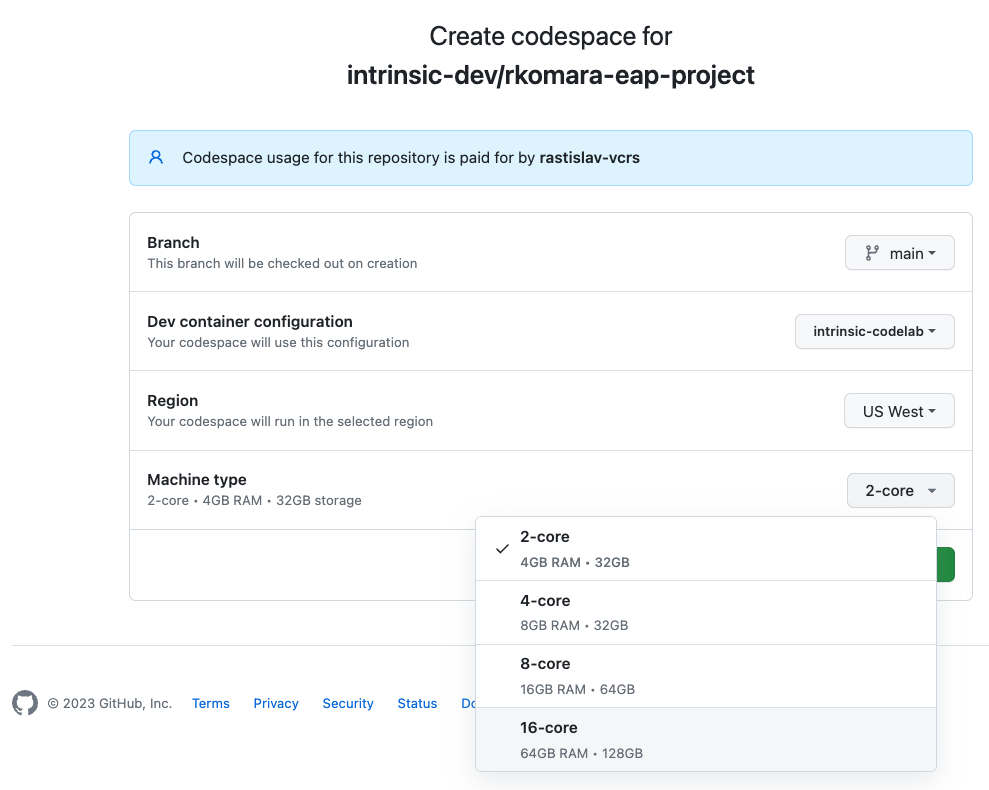
- Press the
Create codespacebutton.
Once your GithHub Codespaces VM starts up, you're ready to continue with the next step, configuring the environment:
-
Open the Codespace terminal (if one is not already open) using either the command palette or
Ctrl-Shift-C -
Create the Devcontainer configuration:
mkdir .devcontainer
cat <<EOF >.devcontainer/devcontainer.json
{
    "name": "intrinsic-flowstate-beta",
    "image": "ghcr.io/intrinsic-ai/intrinsic-dev-img:latest",
    "runArgs": ["--network=host"]
}
EOF -
From the command palette (
Ctrl-Shift-P) selectCodespaces: Rebuild Container. When prompted select "Full Rebuild"
Once your environment is configured, you're ready to continue with the next step, connecting to an Intrinsic project.