Interacting with Services in vscode
Platform services (called services on this page) are programs that offer stateful capabilities to skills. This guide explains how to install Intrinsic services using the VS Code extension.
Prerequisites
Before attempting this guide you must:
- Deploy a solution
- Set up your development environment
- Connect VS Code to your cloud organization
- Create your first service
The extension clearly separates skills and services in the explorer view. Under the services node, you can now see available services and deploy them to a running solution instance.
Install your service
Once your service builds, you are ready to install it into a solution.
You must connect to an Organization before attempting to install a service. This includes selecting a target solution.
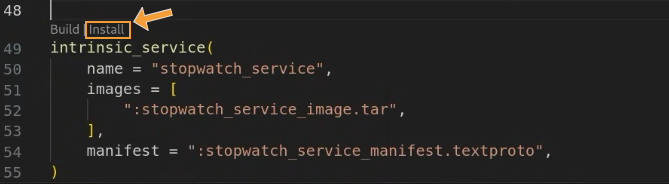
Selecting a target solution causes new links to appear above the service build rule (the intrinsic_service( line in your BUILD.bazel file).
These are:
- Build, builds a service
- Install, installs a service
Click Install.
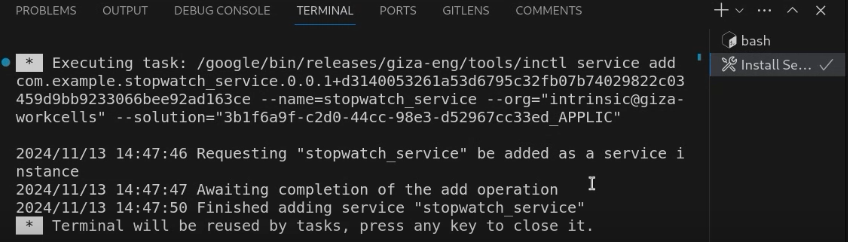
A terminal window in VS Code will show the progress of installing your service.
Add installed service to a solution
-
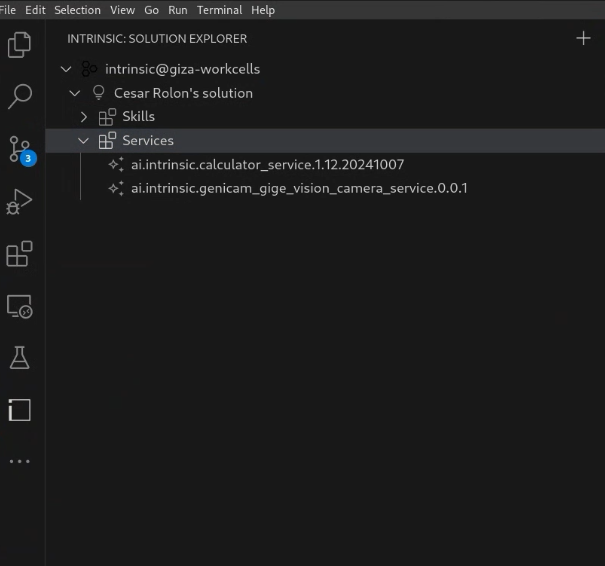
Open the Intrinsic Explorer: Locate and open the Intrinsic explorer in the VS Code sidebar.
- Navigate to services: Within the explorer, you'll find separate nodes for skills and services. Expand the Services node for your organization and solution.
-
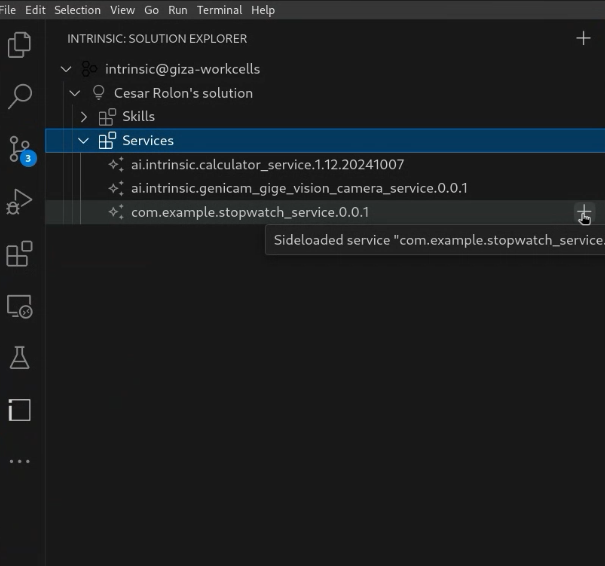
Create service instance in the solution.
- Click on the desired service in the list and select “Add to an instance”.
-
Enter the name of the service instance

- A terminal window in VS Code will show the progress of installing your skill.