Manage Solution Versions
About Solution versions
Flowstate supports versioning for Solutions. As you develop your Solution in Flowstate, you can choose to commit a snapshot of your Solution as a “version”, and gradually build up your Solution’s version history.
Then, if you run into a problem and want to go back to a previous version of your Solution, you can just pull up your version history, select the version you want to use, and click “Restore”. A copy of that version will load into the Solution Editor and you can continue working. You can also restore to a previous version from the Portal.
Every version in Flowstate is immutably saved, meaning that it’ll always be available, and each version and the order of existing versions won’t be changed after you create it.
Version schema
Flowstate gives you the flexibility to choose your own versioning schema, and simply provides a text box (limited to 80 characters) for you to enter the name of each version.
Each version is also displayed with key metadata, including:
- (optional) Description: add details on what is important or new about this version, for you and your colleagues to refer to
- Timestamp when the commit was made, in UTC
- Person who created the commit
Terminology
There are two related but distinct actions in Flowstate that we should clarify:
-
Save: clicking “Save” in the Solution Editor overwrites the working copy of your Solution. The state of your working copy is persisted, so even if you stop your Solution, then redeploy it, your saved changes will still be there. This working copy of your Solution continues to change with every change you save.
-
Commit a version: this action takes a snapshot of your Solution, and immutably saves that snapshot into your Solution’s version history, as a “version” with metadata (version name, description, timestamp, author). A version cannot be changed once it’s committed. Versions are displayed in chronological order, meaning that every new version committed is appended to the end of your Solution’s version history.
Flowstate notifies you if you have saved changes that have not yet been committed in a version, with the “Modified” chip.
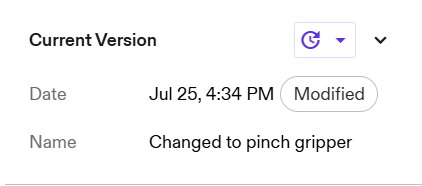
Flowstate tracks two versions:
- Current version: this is the Solution version that you are working off of.
- Latest version: this is the version that was most recently committed to your Solution’s version history. When looking at your Solution's version history, this is the first item in the list.
These two versions are generally the same, unless you have restored a different version of your Solution and not yet committed a new version.
The purpose of highlighting these two versions is to make it clear when your working copy is modifying a version that’s not the latest version, so that you include that information in your version description when you commit a new version (e.g., the version name could be "restored v11 then added gripper X"). This can be important because the new version you’ve committed represents a discontinuity in your version history.
Once you commit a new version, then the current and latest version of your Solution is again the same.
You can only commit a new version of your Solution when you have changes that are saved but not committed.
Illustrative Example
Suppose you are creating a claymation movie (stop-motion animation with clay figures).
In claymation, you first position your clay figures, then take a picture of the scene, then move the figures to a slightly different position, then take another picture (and add it behind the previous picture you took), then continue this until you’ve covered the range of motion you wanted to achieve. (Finally at the end, you create the “animation” by stringing together all the pictures, so it looks like it’s moving.)
In this example, moving a figure to the right spot is like “saving” a change in Flowstate: it’s a change to the working copy of your scene (which you can continue making changes to). Taking a picture of the scene is like committing a version, where the picture is the version – it shows the state of your scene at the moment you took the picture, and it doesn’t change once you’ve made it.
In the moment you take the picture, the state of your working copy and the state shown in your picture exactly match. Then, as soon as you make a change to the figures (aka your working copy), the two are slightly different again (and in Flowstate, we’d show the “Modified” chip for your Solution’s current version).
Commit a new Solution version
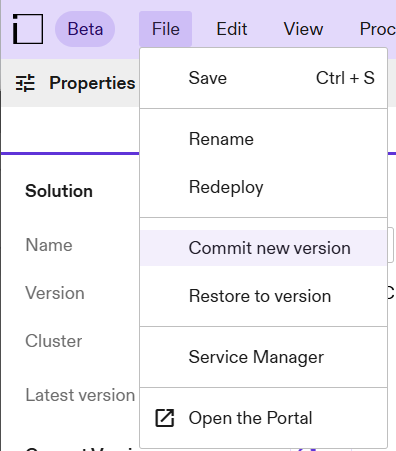
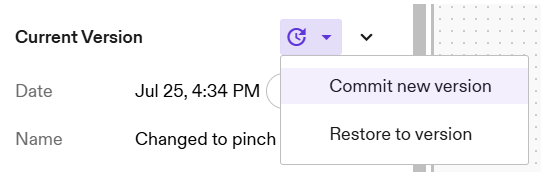
After you have saved changes to your Solution, you can commit a new solution version in the Solution Editor in one of two ways:
-
Go to File → Commit a version
-
In the left panel, under Properties, select the clock icon drop-down menu next to “Current Version”. Select “Commit new version”.
This opens the “Commit new version” dialog. Enter a name for the new version. Add any relevant details that you or your colleagues will want to know about this version in the description. While the description field is optional, it is highly recommended.
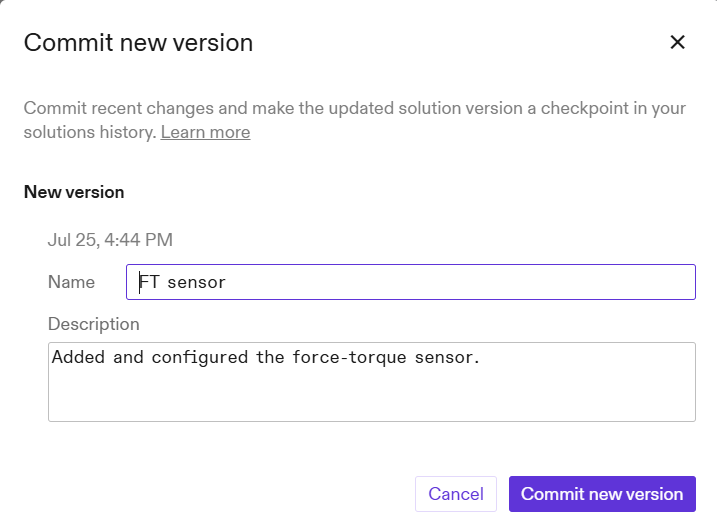
Click “Commit new version”. If your commit was successful, you’ll see a toast at the bottom of your screen.
Success! You can continue working, and be confident your version was immutably saved in your version history, and that it will be accessible from both the Portal and the Solution Editor.
Restore a Solution version
If you decide that you want to restore a version (e.g., roll back to a previous version), you can do this from either the Solution Editor or the Portal.
Restore a version from the Solution Editor
Using the File menu, or the versions icon in the Properties panel, select “Restore to version”. This brings up your Solution’s version history.
Select a version to restore to.
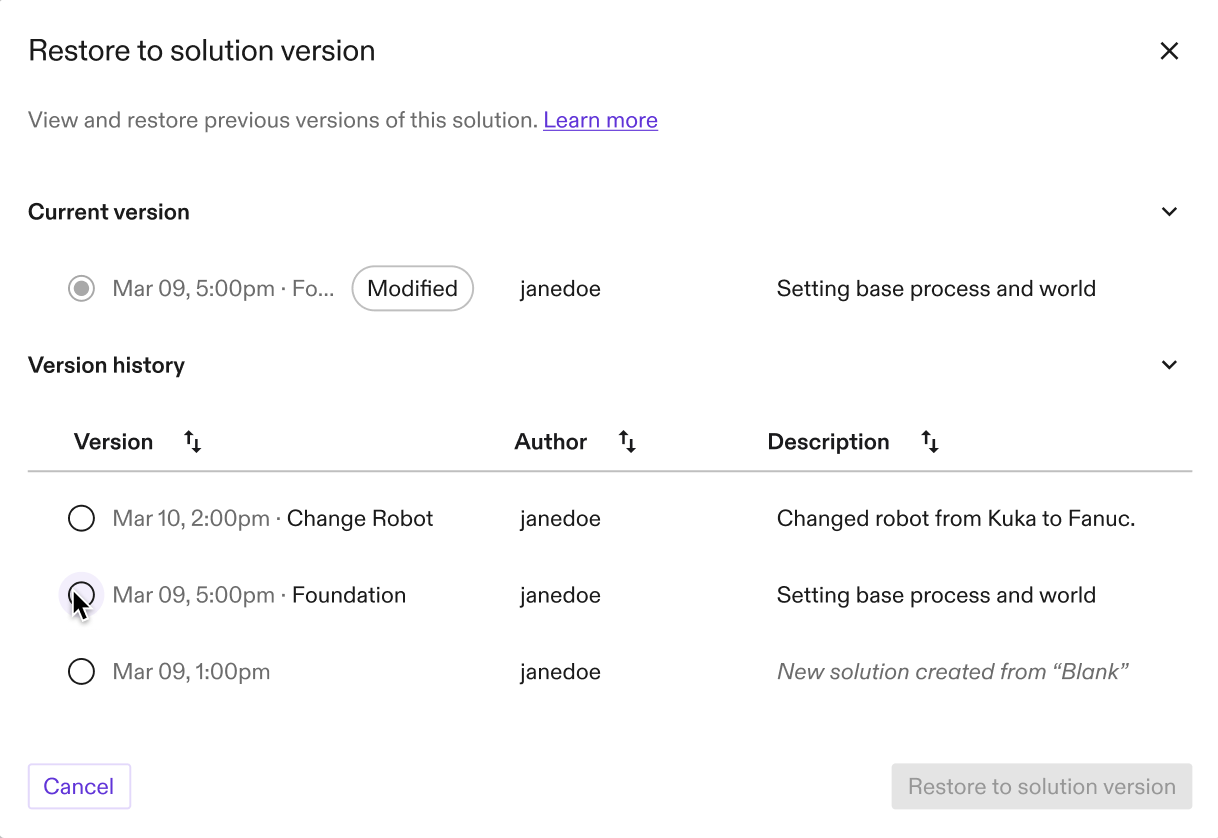
Select the version that you’d like to restore to and click “Restore to solution version. You’ll see a toast to confirm that your selected version was successfully restored.
After restoring to a version, you may need to manually re-load your process from the menu in the Solution Editor.
Restore a version from the Portal
You can also restore a version from the Portal. The workflow is much the same as restoring a version from the Solution Editor.
The Portal’s Solutions page shows the Solutions you have access to, as well as the Current Version of that solution (i.e., the version of the Solution that will launch by default). The “Modified” tag calls out if there are any unsaved changes for that Solution.
To restore a version, select “Restore to version” from the three-dot menu to the right of your Solution.
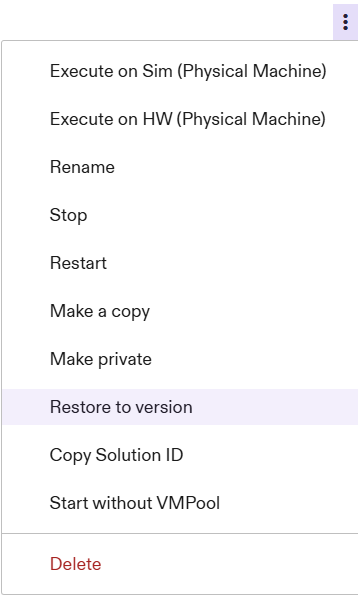
You’ll have an opportunity to commit any unsaved changes (to a new version) before restoring your solution to a previous version. The “Restore to solution version” in the Portal is the same as for the Solution Editor.
Once you’ve selected the version you want to restore, the Solutions table will update to show the current version (i.e., the version that will launch when you open the solution), as well as the “latest version” (i.e., most recent version). There will also be a toast to confirm that the process was successful.
Now you can open the restored version of your solution.
After restoring to a version, you may need to manually re-load your process from the menu in the Solution Editor.