Simulate a solution
You can execute a solution either on hardware or in simulation on your IPC. This page provides a step-by-step guide for executing a solution in simulation from the Flowstate portal Home page, Solutions page, or Solution Editor. Additionally, the page explains how certain assets may exhibit different behaviors within a simulated environment.
If you are interested in running simulations programmatically refer to our CI/CD guide here.
Execute from Home or Solutions page
-
Click the contextual menu (three vertical dots) for your preferred solution.
-
Choose Execute on Sim.

-
In the dialog that appears, select a physical workcell from the drop-down menu.
-
Click the continue button.
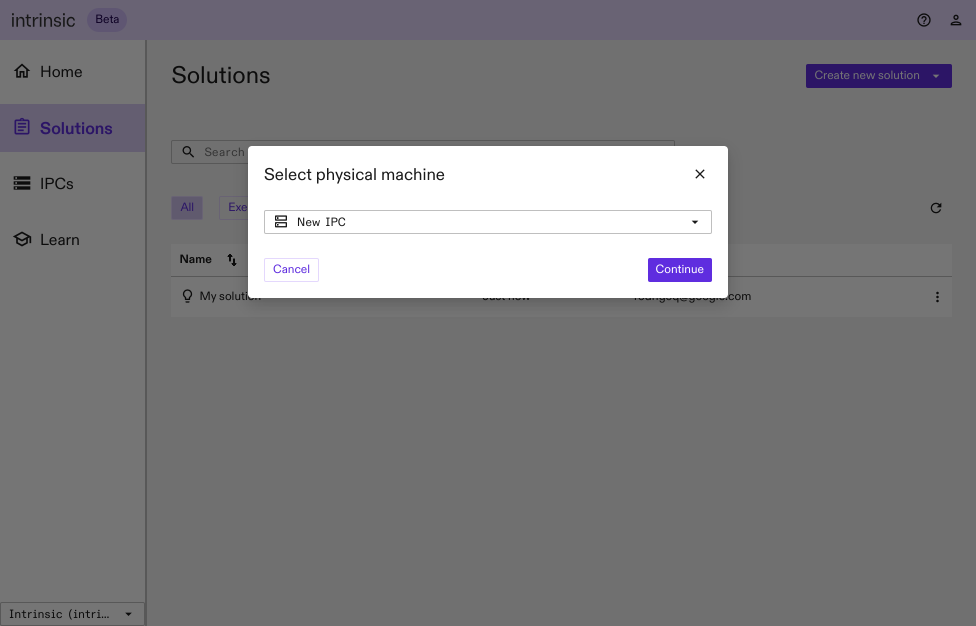
To stop the Solution, select Stop solution from the three-dot contextual menu.
Execute from the Solution Editor
-
To select your preferred execution option, access the navigation menu at the top of the Solution Editor.
-
From the drop down menu next to Execute on, choose Simulation.
Switch to the simulator world view
When a solution is deployed in simulation, processes are executed in the Flowstate simulator. The simulator initializes its world model from the solution scene, and updates the world model dynamically during process execution.
-
To view the simulator world model, click on the Execute tab on top of the 3D scene view in the Solution Editor.
-
Locate the floating menu bar at the top of the 3D scene view. Click on the drop down menu for world view and select Sim only.

Difference in asset behavior: Simulation Vs Hardware
The Flowstate simulator supports all of the assets available in Flowstate, including cameras, robots and force-torque sensors. Each asset instance that is in the digital workcell behaves as a rigid or jointed body in the simulator, and is subject to physical effects such as gravity. Many resource assets such as suction grippers or robots define specific behaviors that allow the resource to be controlled in the simulator from skills in a fashion identical to the physical hardware.
There are a few notable differences in how a solution behaves in simulation, due to the specific behaviors defined for the following assets:
Grippers
-
Simulated suction grippers grasp objects by sensing proximity to the object from the suction cup(s). So the distance from the object at which the simulated gripper successfully grasps an object may not be the same as on the physical gripper.
-
Simulated pinch grippers grasp objects upon closing the gripper by detecting contact with the inner surface of the gripper fingers.
-
Once a grasp is successful, the object is not released from the gripper unless it is commanded to do so, ignoring physical limitations such as object weight, surface compatibility or friction.
Static objects
- Objects that are marked as static in Flowstate are immovable in the simulator and ignore all forces applied to them. The static property is propagated to all objects which are nested under a parent object.
Floating objects
- Objects that are not marked as static and are also not nested under a parent object in Flowstate are referred to as floating objects. Floating objects without collision geometry fall indefinitely in simulation. It is recommended to mark objects without collision geometry as static.
- The simulator optimizes interactions between floating objects and other objects in the workcell. In particular, a floating object is modeled with full physics accuracy only when it is at a close distance to a robot end-of-arm-tool such as a gripper.