Add frames
You need a running solution before creating or moving frames; please start or create a solution first.
Create a single new frame
-
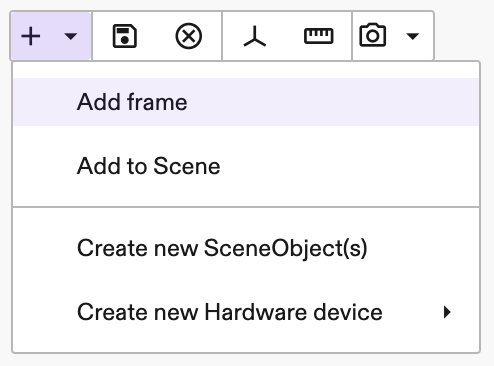
Click the + icon in the toolbar to add a new asset or frame.
-
Then select Add frame to add a new frame.
-
Assign an expressive name for the frame in the generated new dialog window. Be sure to choose an unique identifier that is not yet used in your application.
-
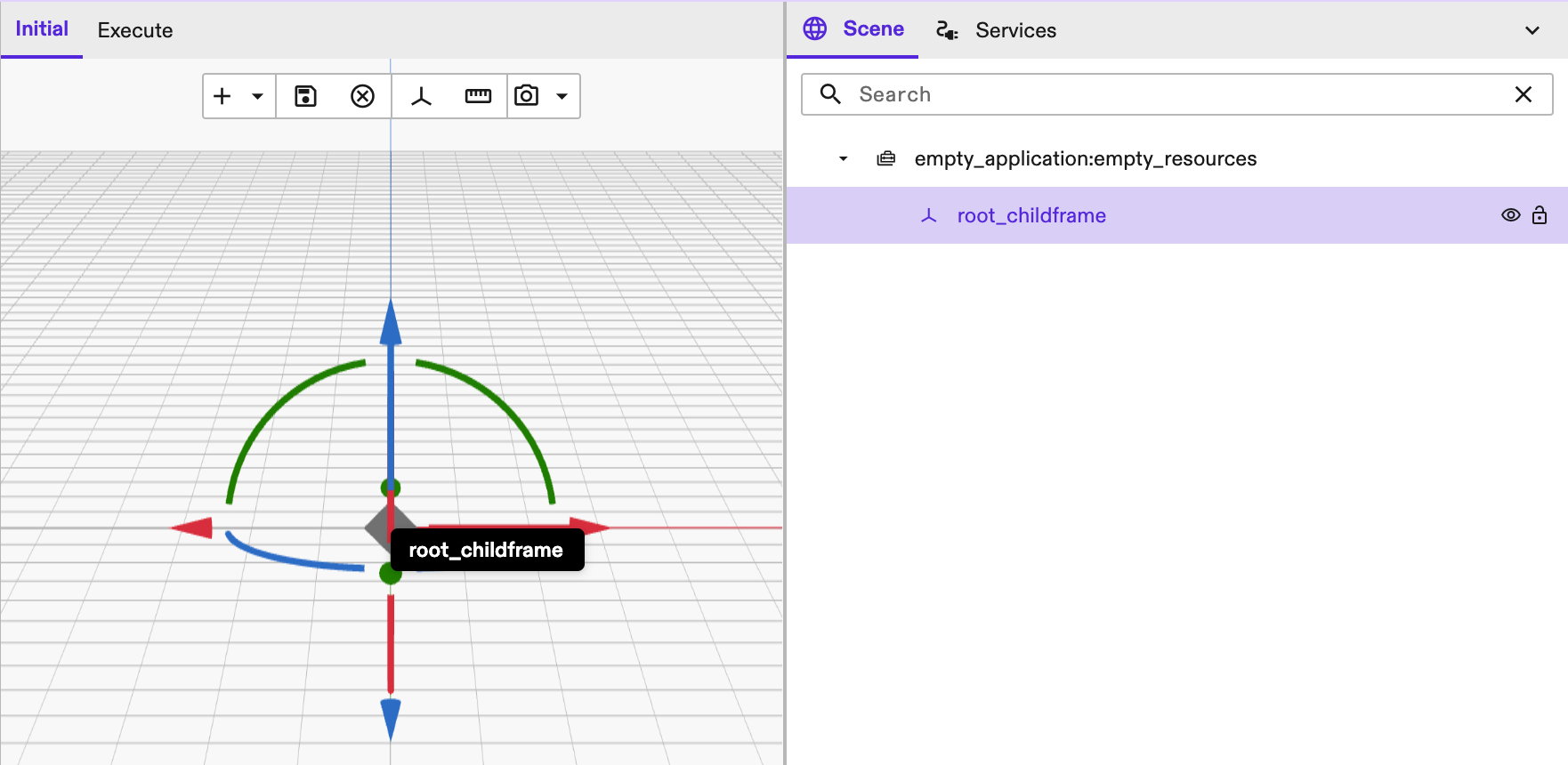
The new frame is now created at the origin in the Scene Editor, and the camera view is re-centered to the newly created frame.
Create frames with the Frame tool
-
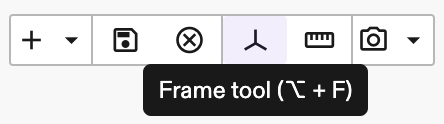
Click the Frame tool button in the application toolbar to enable the Frame tool and enter frame creation mode.
-
Click anywhere in the Scene Editor to create a new frame. A new frame is created at the position of the mouse click, at the point of intersection with an existing object in the scene or on the scene floor if there are no intersections.
-
The parent for created frames can be changed by selecting another object in the Scene tree. If another frame is selected, the new frames are created as siblings of the selected frame.
-
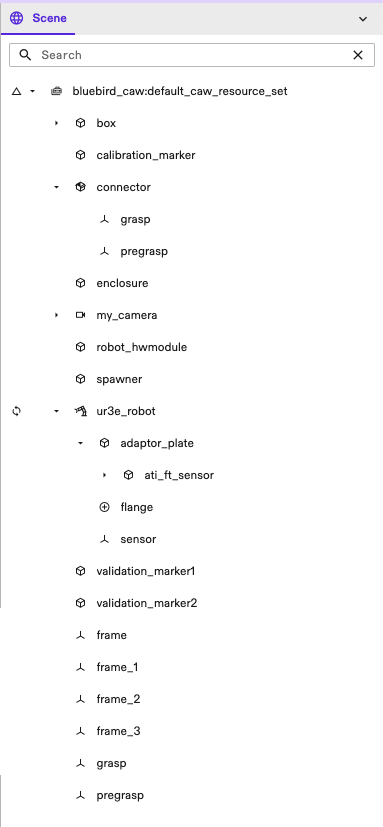
A unique name for the new frame is auto generated according to the following pattern: "frame", "frame_1", "frame_2", etc. The generated name will include a counter as a suffix to avoid repetion of child names under the selected parent. For example in case there is already "frame_3" then the generated name for the new frame is "frame_4". You may rename any of the created frames later.
-
Click the Frame mode button in the toolbar again or press the Escape key to dismiss the frame creation mode.
Asset frames vs. global frames
Frames created independently of assets offer greater flexibility in their usage. To maintain asset modularity, frames defined within an asset can be moved but not renamed, reparented, or deleted directly. These operations require modifying the asset's source definition and reimporting it. In contrast, individual frames added directly to the solution are not restricted and are identifiable by a special "globe" indicator.

Rename a frame
After creating the frames, you can change their names by either right-clicking the frame node in the Scene tree and selecting Rename or clicking the edit icon next to the frame name in its Properties panel.
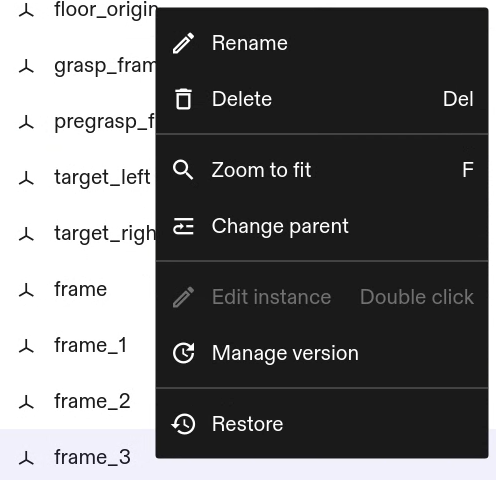

You can either select one frame to rename or multiple frames to batch rename. In case of multiple frames selected, the batch rename dialog will be shown. Only select frames for renaming, as this feature is currently limited to frames. The batch rename dialog allows two options for renaming: by finding and replacing the text in the selected frames names and by adding text to the start or the end of the selected frames names.
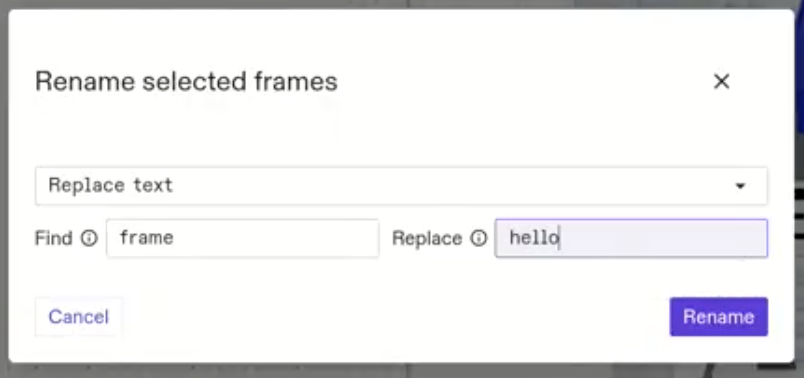
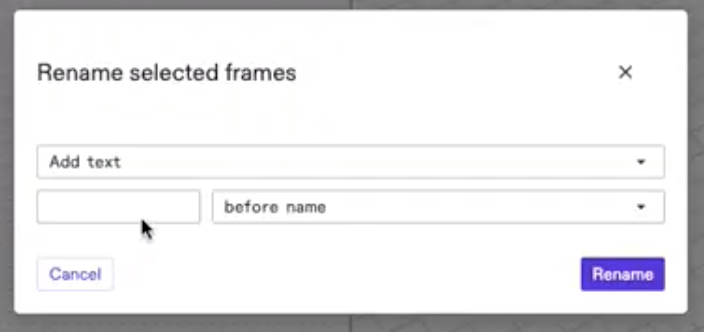
If the name already exists under the frame parent, then '_1' is automatically
appended. For example, parent 'root' has child frames 'frame' and 'foo'. Renaming
frame 'foo' to 'frame' in the batch rename dialog will result in
names 'frame' and 'frame_1'. If the name that already exists also has a counter
in the format of {number} then the counter is increased. For example, parent
'root' has child frames 'frame', 'frame_1' and 'foo'. Renaming frame 'foo' to
'frame' in the batch rename dialog will result in names 'frame', 'frame_1' and
'frame_2'. The name is always matched in its entirety so renaming 'frame_1' to
'frame_2' while there already exists 'frame_2' will result in 'frame_2_1'.