Set up hardware modules
Before executing your solution on hardware, you need to set up and deploy the hardware modules with the Flowstate platform. In this section, you will find a series of guides that walk you through the process of configuring various types of hardware modules to integrate with Flowstate.
This guide does not include guidance on safety. Set up adequate safety systems and conduct all risk assessments before deploying to real hardware.
Note that, in order to drive a robot, you will always need to add at least two assets:
- An asset with family
hardware_modulefor each piece of hardware (robot, sensor, gripper). - An asset with family
realtime_control_servicewhich controls all the added hardware modules. There is usually an asset available which has been pre-configured for the particular robot manufacturer, such as "Universal Robots real-time control service".
In the subsquent pages you will find detailed information on setting up and deploying hardware modules for particular hardware types. In particular you can configure hardware modules for the following hardware types:
Manufacturer-specific guides, which provide a more detailed explanation of this process, can be found in the navigation bar on the left.
Troubleshooting
Hardware module and realtime control service no longer compatible
Q: What should I do if my hardware modules and real-time control services (aka ICON assets) are no longer compatible with ones built with the current release.
Example
If you started a solution and added a real-time control service in a release earlier than Intrinsic software 1.5, and you now want to add a hardware module, you need to work around as follows to achieve compatible versions of hardware module and real-time control service:
- Error:
INTERNAL: axia_hal_module failed to connect: Unable to open shared memory segment: /axia_hal_module__icon_state - Reason: Is likely due to a version mismatch between the robot_control service and the ati-hardware module
Solution
The solution is to update all necessary hardware assets.
Create a copy of your application before updating in case you need to restore your previous version state.
This can be done by: Services | “service name” | right click | Manage Version | choose default (most recent):
You should update all hardware assets to the latest version. This includes:
- The
realtime_control_serviceasset. - All
hardware_moduleassets.
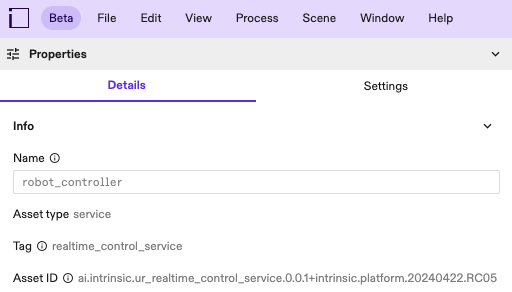
You may verify the versions for all upgraded assets in the Details tab after selecting the asset in the Services tab: