Universal Robots RTDE setup
Flowstate provides a full-integration of Universal Robots (UR). This guide describes how to set up and use Universal Robots with Flowstate.
This guide does not include guidance on safety. Set up adequate safety systems and conduct all risk assessments before deploying to real hardware.
A UR can be jogged from Flowstate even if the pendant is in Local mode.
This is a limitation of UR.
Overview
This documentation guides you through each step of setting up a Universal Robot with Flowstate:
- Set up the robot
- Switch the robot to Remote Control
- Add and configure the robot in Flowstate
Prerequisites
- The minimal supported version of Polyscope (UR firmware) is 5.9.4
- This guide assumes your robot is configured with the IP address
192.170.10.1in the module configuration (in case you need a different IP, adjust it in the network configuration) - Basic knowledge about Intrinsic Flowstate
- Approved Industrial PC with Intrinsic stack
- 1 RJ45 CAT6 network cable
Initial robot setup
The following sections show the configuration for using a Universal Robot with Flowstate. The configuration needs to be performed only once.
The robot needs to be in Manual mode for settings to be available.
The mode can be changed in the top right corner of the UR Teach Pendant if
Settings | System | Remote Control is already enabled.
Network connection
Connect the UR control box directly to the non EtherCAT Port of the RTPC using an Ethernet cable.
Configure remote control
In Settings | System | Remote Control, enable Remote Control mode.
This adds the Local/Remote toggle at the
top of the UR Teach Pendant that you can use to switch between modes.
Disable fieldbus over Ethernet
Installation | Fieldbus over Ethernet needs to be disabled. Otherwise the Intrinsic stack cannot control the robot.
Payload and Tool Center Point
The Payload and Tool Center Point (TCP) needs to be set to appropriate values using the Installation menu, otherwise the motion performance will be bad and the robot can drift in free drive mode.
While the TCP pose of the settings is not used by the Intrinsic stack, it is recommended to set a reasonable value. This enables proper function of Cartesian jogging using the UR Teach Pendant.
Safety setup
While Intrinsic does not offer Safety Advice, we recommend some basic settings.
Installation | Safety allows editing the safety configuration. Slowly jogging the robot allows testing the setup (tool, tip, elbow).
- Add a safety plane (Safety | Planes) to represent the table top.
- Add other planes (walls, ceiling) as required.
- Add a sphere around the TCP to prevent collisions of the planes with the tip and tool.
We recommend using the Safeguard stop for non safety critical stopping of the
robot. See the official website
for more information.
Custom network settings
This guides uses 192.170.10.1 for the robot.
Adjust this and the robot_ip of the
UniversalRobotsModuleConfig to your
RTPC Network Configuration.
Open the network settings from the UR Teach Pendant Settings | System | Network and enter these settings:
Static Address

IP address: 192.170.10.1
Subnet mask: 255.255.255.0
Default gateway: 0.0.0.0
Switch to remote control
The robot needs to be in Remote Control mode to
be controlled by Flowstate.
This can lead to unexpected motion if a solution is already running in Flowstate.
The mode can be changed in the top right corner of the UR Teach Pendant.
If the robot is in Manual mode, switch to Remote Control.
If the button disabled, you may need to close the active window.
Add the robot in Flowstate
The robot can be added in simulation or real hardware mode. The hardware module network configuration can only be verified in real hardware mode.
To connect to UR robots with Flowstate, you need to add a UR hardware module driver asset and its respective real-time control service to Flowstate, and adjust the configuration.
To add the assets, follow the guide at Add a robot to Flowstate.
During following the guide, choose the "Universal Robots real-time control service" and the hardware module driver for your specific robot model.
Configuration in Flowstate
The realtime_control_service and hardware_module may require adjusting the default
configuration, for example when using a different IP or different names.
The joint positions of the real robot are only reflected in Flowstate after the robot is fully configured, the execution switch (at the top) is switched to Real Hardware (not Simulation) and the Execute tab above the 3D scene view is selected.
Configure the robot hardware module
When not using the default IP Address (192.170.10.1) for the robot,
the robot_ip needs to be adjusted.
You can find the IP Address of the robot on the Config panel of the
UR Teach Pendant.
Select the module in Flowstate in the Scene tree with the name you configured when adding
the asset.

Then select the Config tab in the Properties panel on the left side.
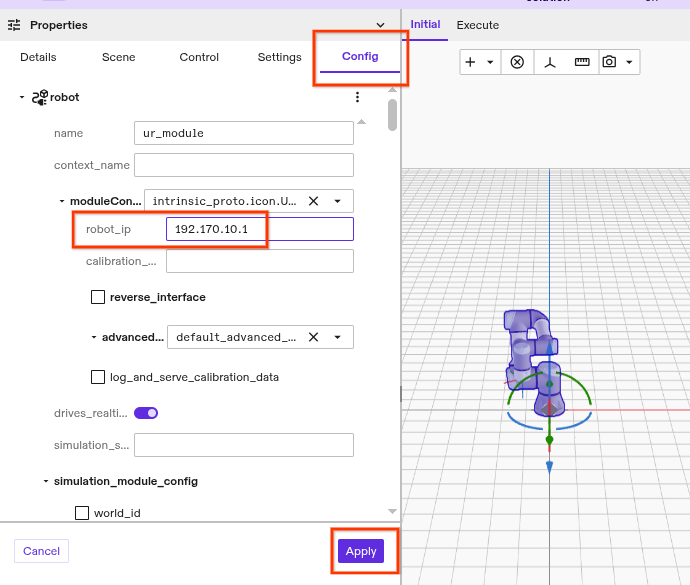
You can edit the robot_ip directly in the Flowstate Editor, then click Apply.
This will restart the affected services.
Optional: Configure an additional force/torque sensor hardware module
If you added a second hardware module for a force/torque sensor, such as an EtherCAT F/T sensor, you need to adjust its configuration too.
Follow the steps shown in the F/T sensor tutorial.
Then configure the realtime control service to use the sensor.
Applying the new configuration will restart the affected services.
Optional: Additional configuration for custom robot name (not "robot")
Note: Only perform this step if you picked a name other than "robot" while adding the robot to Flowstate.
- In the robot hardware module configuration, change the value of
simulation_module_config::geometry_asset_nameto match your robot resource name. - In the real-time control service configuration, change the values of
realtime_control_config::parts_by_name["arm"/"adio"/"ft_sener"]::hardware_resource_nameto match your robot resource name.
Optional: Configure the robot's application limits
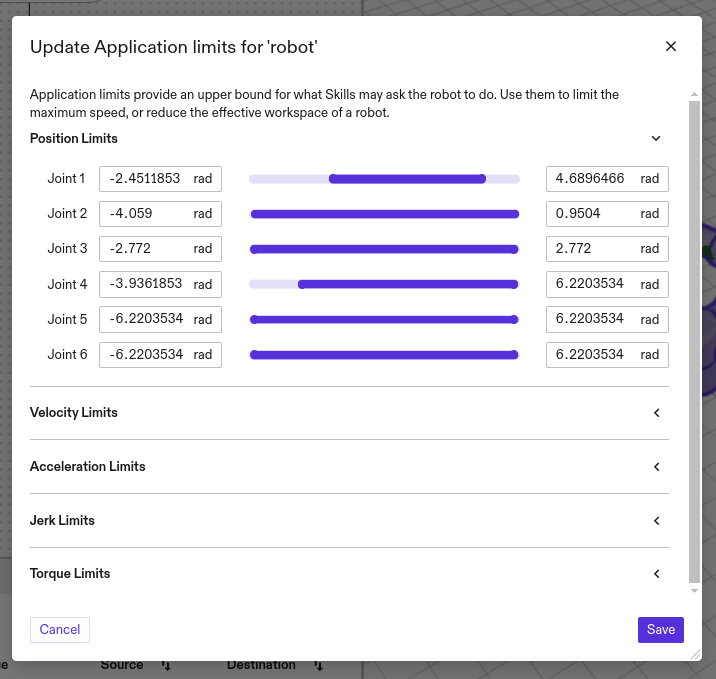
The robot settings allow adjusting the Application Limits, which contain the
robot's joint limits for a specific application/solution.
The UR5e HAL asset does not require any special configuration.
To adjust Application Limits first select the robot in the Scene tree with the
name you configured when adding the asset.
Then select Settings in the left panel.
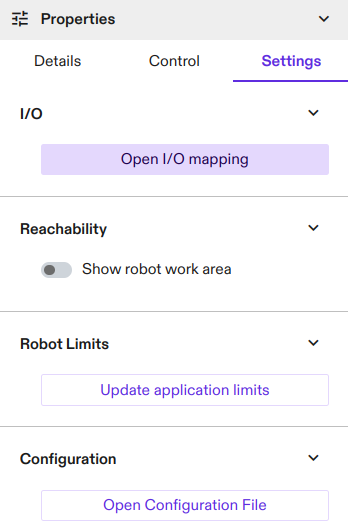
To set more conservative limits that are specific for your application, select
Update application limits.
Optional: Robot specific kinematics calibration
The Universal Robots controller offers access to calibrated kinematic data. Using this data increases the positional accuracy of the robot. Flowstate can fetch and apply the callibration data.
To use the kinematic calibration, first make sure you are running on Real hardware and select the robot resource in the Scene tree or Belief world viewer. Then select Settings in the left panel. From here you can manage the calibration under the Kinematic Calibration section. You can verify if Default or Calibrated kinematics are currently active. To apply the calibrated kinematics from the controller click Retrieve from Controller.
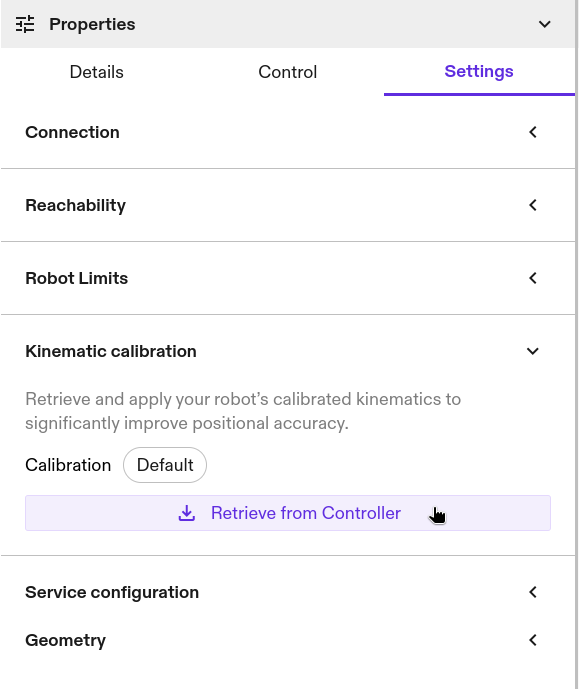
Robot positional accuracy is now significantly improved.
Tips and common issues
Home position in joint angles
The joint configuration [0,0,0,0,0,0] is not Candlestick, but a horizontal
arm position.
A more common home position for UR robot that is similar to a Candlestick pose is [0,-1.5708,0,-1.5708,0,0] rad.
Digital inputs and outputs (DIOs) considerations
It takes between two to four cycles for a DIO command to be reflected in the respective status.
The UR robot controller can experience high load when the state of many
digital outputs is changed every cycle for multiple cycles.
It is a well known RTDE issue that the Universal Robots controller
skips sending network packages under high load.
In case the module doesn't receive network packages for a long time (>100ms),
the module faults with the message: Did not receive data from robot.,
because closed loop control is not possible anymore.
Use ClearFaults in the Robot Control Panel to clear the error.
Control robot in automatic mode
The robot can still be controlled using Flowstate when in Automatic mode when
the control mode on the UR Teach Pendant is switched to Automatic after
Flowstate is connected to the robot.
Documentation and Support
Manuals and software are available on the Universal Robots web site.
General UR questions are answered in the UR support forum.
It's helpful to include the log output of the Teach Pendant when requesting support.