Move hardware or frames
You need a running solution before moving frames or objects; please start or create a solution first.
First, select the frame or object from the Scene panel on the right, or directly in the 3D view. There are two ways to move the selected frame or object:
Move with the 3D handle
Poses of selected objects in the 3D view can be manipulated by using the 3D handle:
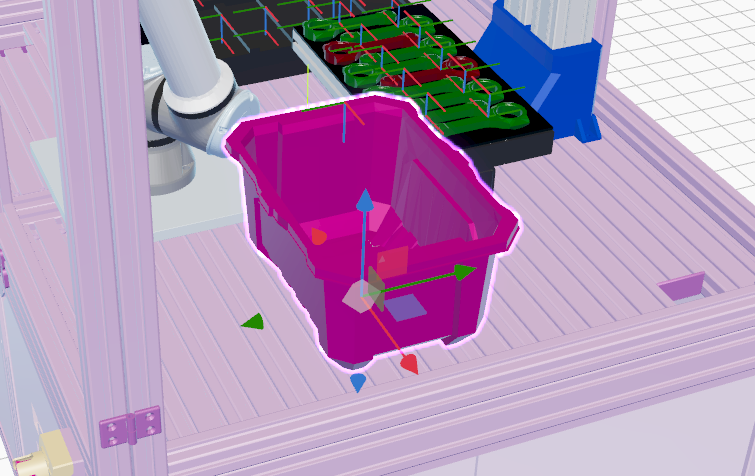
Drag along an axis
Move the frame or object to the required pose by dragging it with the colored arrows:
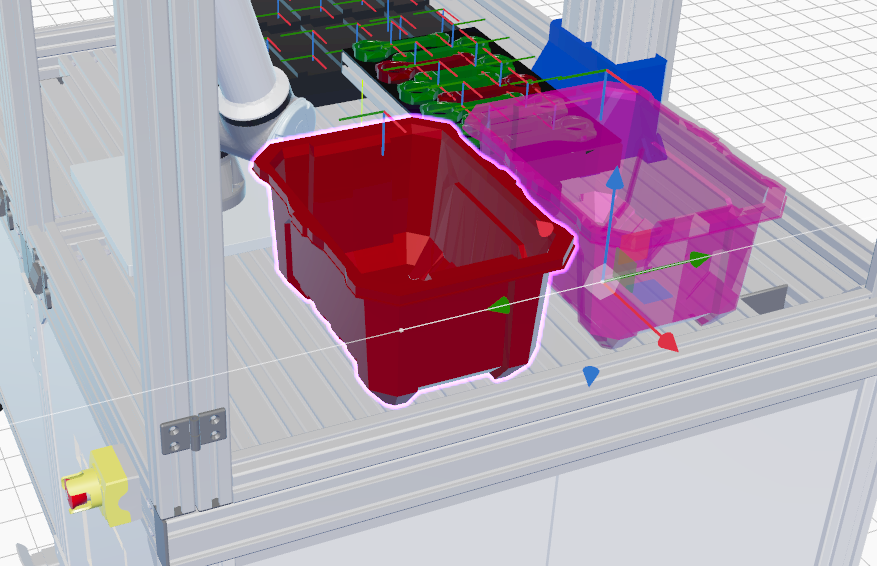
Place objects on other surfaces
- When an object is selected, click the center of the 3D handle:
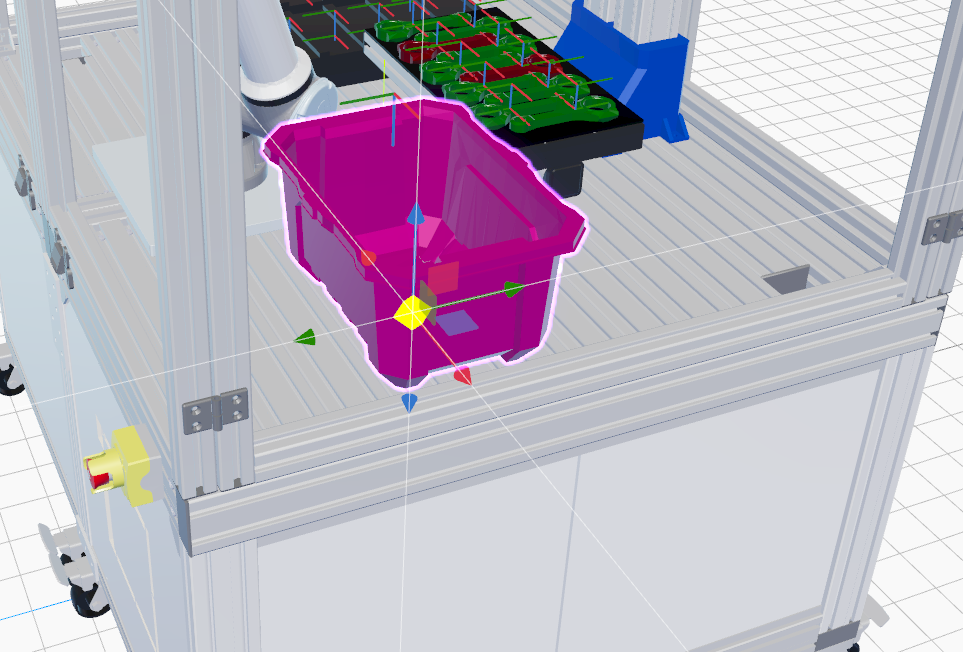
- Then mouse-drag in the scene. This "snaps the object" i.e., places the object to be flush with the collision geometry of the surface you drag over. Note that the collision geometry may not be visible by default in the 3D view, and is often different from the visual geometry that is visible by default. See here for more on setting up collision geometry.
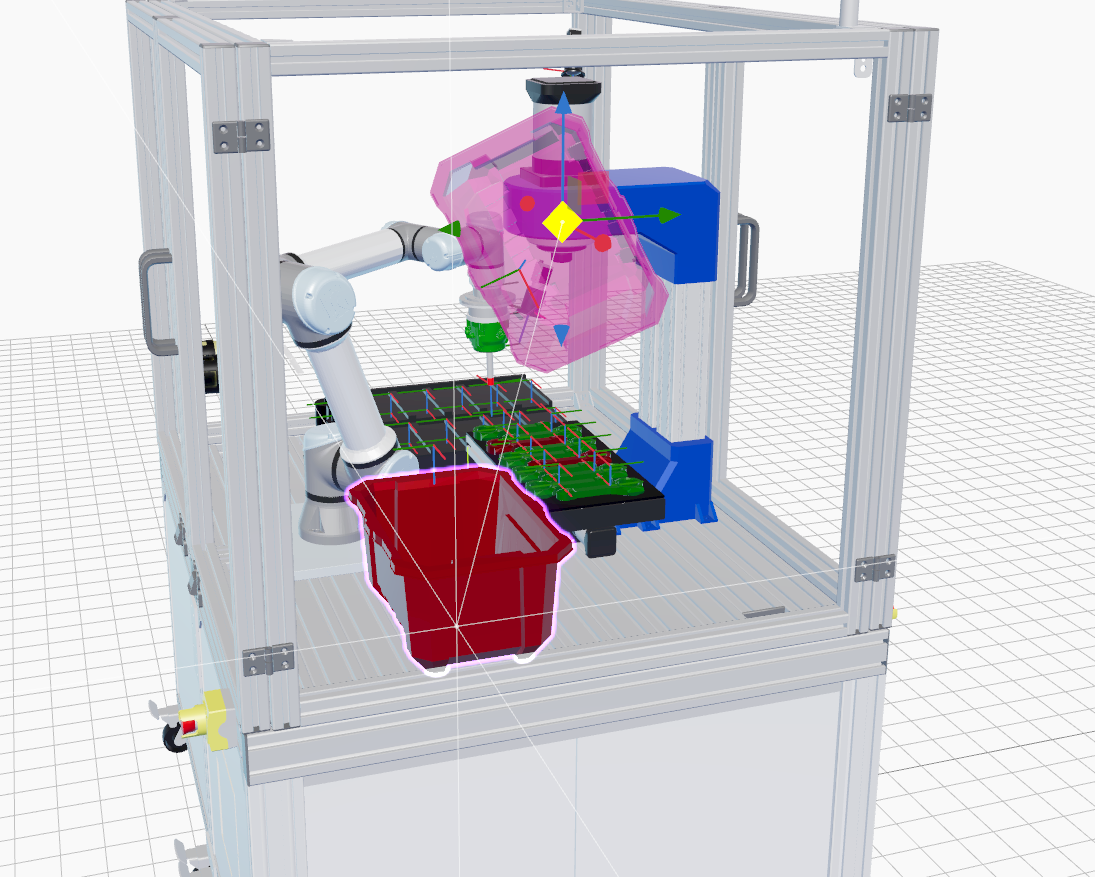
- You can also activate above-mentioned snapping by holding the Shift key while dragging the object along a specific axis using the 3D handle.
Move with Pose panel
You can set detailed position and orientation values in the Pose panel,
located under the Scene tab in the left sidebar. You can edit the pose
relative to three different reference frames: the global World frame, the
Parent frame, or the Local frame. The Parent frame refers to the transform
from the current object's root entity to its entity parent (Note: this may not be the parent object's
root entity; refer to
world concepts
for more details). Editing via the Local frame immediately
resets the local frame to identity. This allows you to use the pose controls to
make adjustments relative to the object's current pose. The unit of rotation is
degrees, and represents an
extrinsic X-Y-Z rotation:
For more details on defining the relative position and orientation of model components in 3D, see Specifying pose in SDFormat
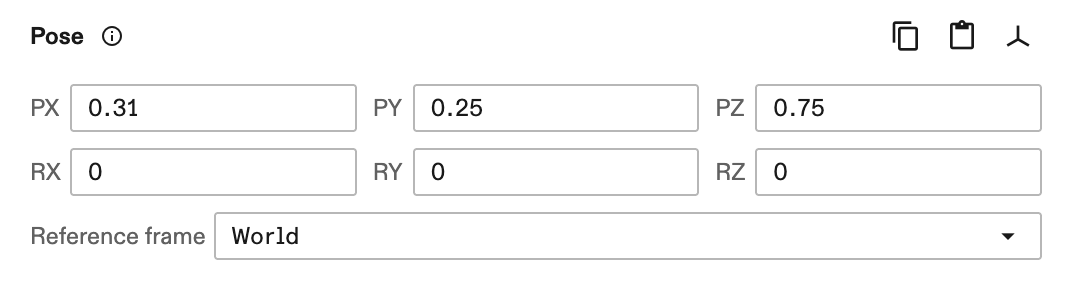
The three-axis button in the top-right of the pose panel allows you to create a
global frame at the object's current position, mirroring its pose in the World
reference frame.
You can also copy and paste poses between panels. When a pose is
copied, it's saved to your clipboard as a comma-separated list of seven values,
px, py, pz, qx, qy, qz, qw. This list represents a translation defined by
(px, py, pz), and a rotation defined by the
quaternion (qx, qy, qz, qw), where
w is the scalar part.