Add visual and collision geometry
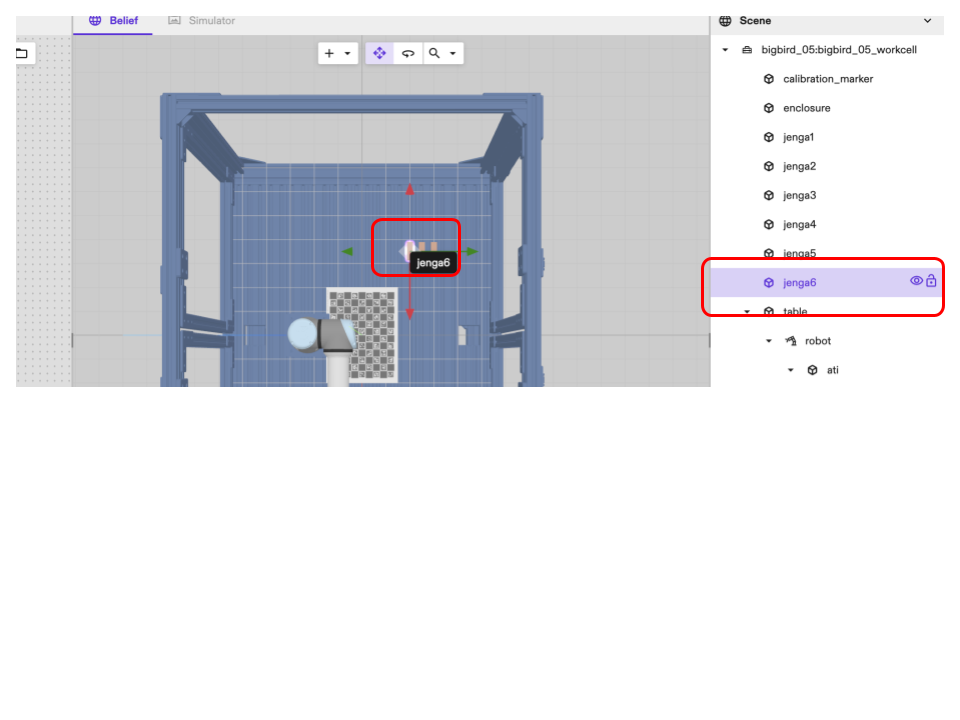
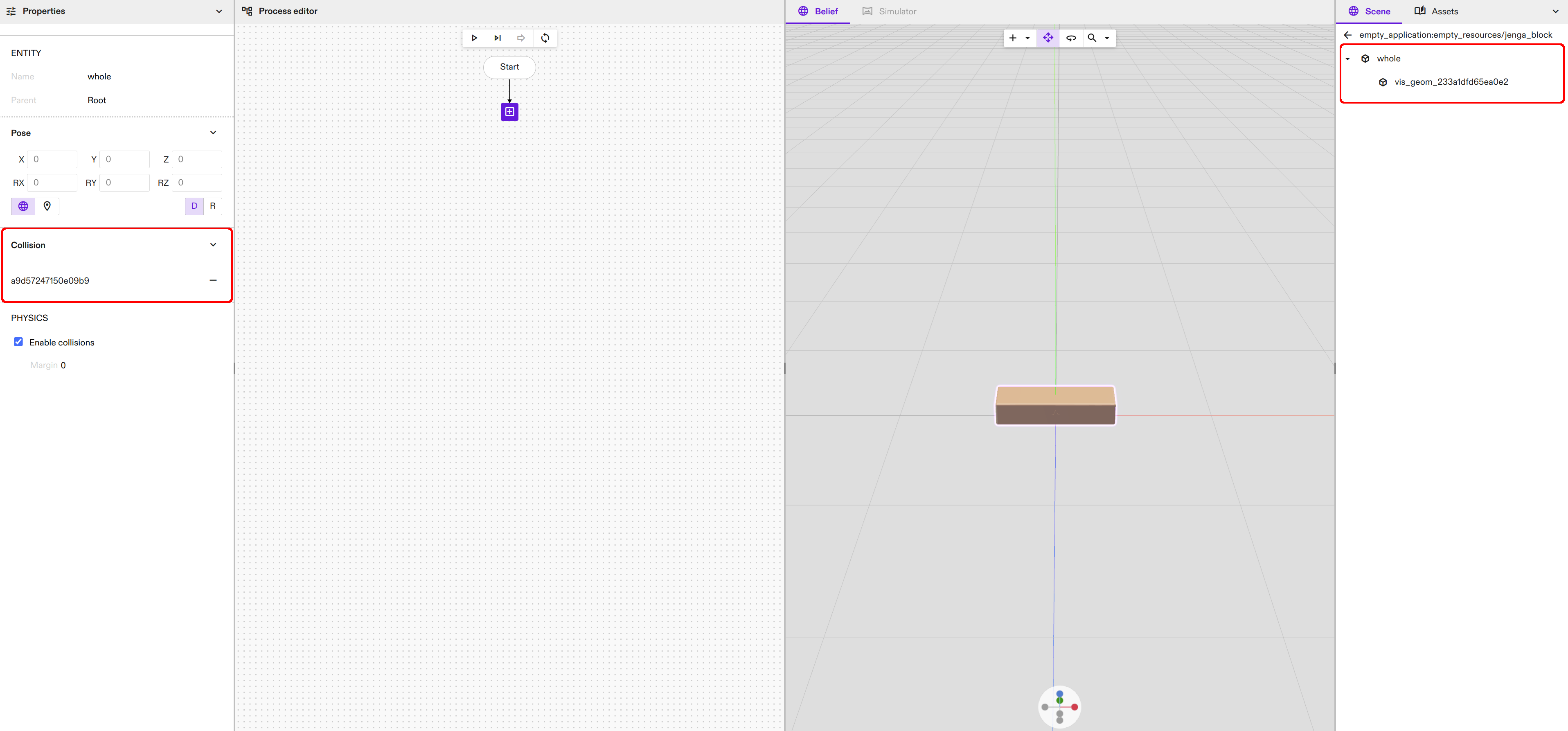
To enter the object editing mode, right-click the object in the Scene panel on the right and select Edit instance option. Then choose the relevant part, either by clicking in the 3D view or in the Scene panel on the right. The visual geometry is visible in the Scene panel on the right. For collision geometry, see the Collision section in the left panel.
Add a collision mesh
-
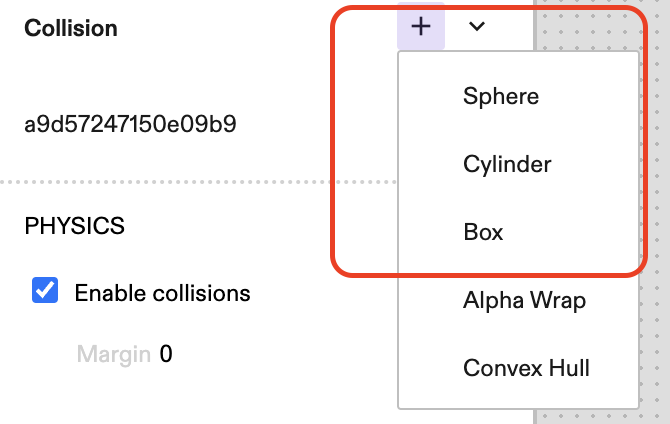
Click the + to add a primitive as a bounding box collision mesh to the selected object.
-
Select the preferred collision mesh to add. In this example a Sphere is selected. Parameterize the mesh added in the dialog. The mesh can also be seen around the object in the Scene Editor.
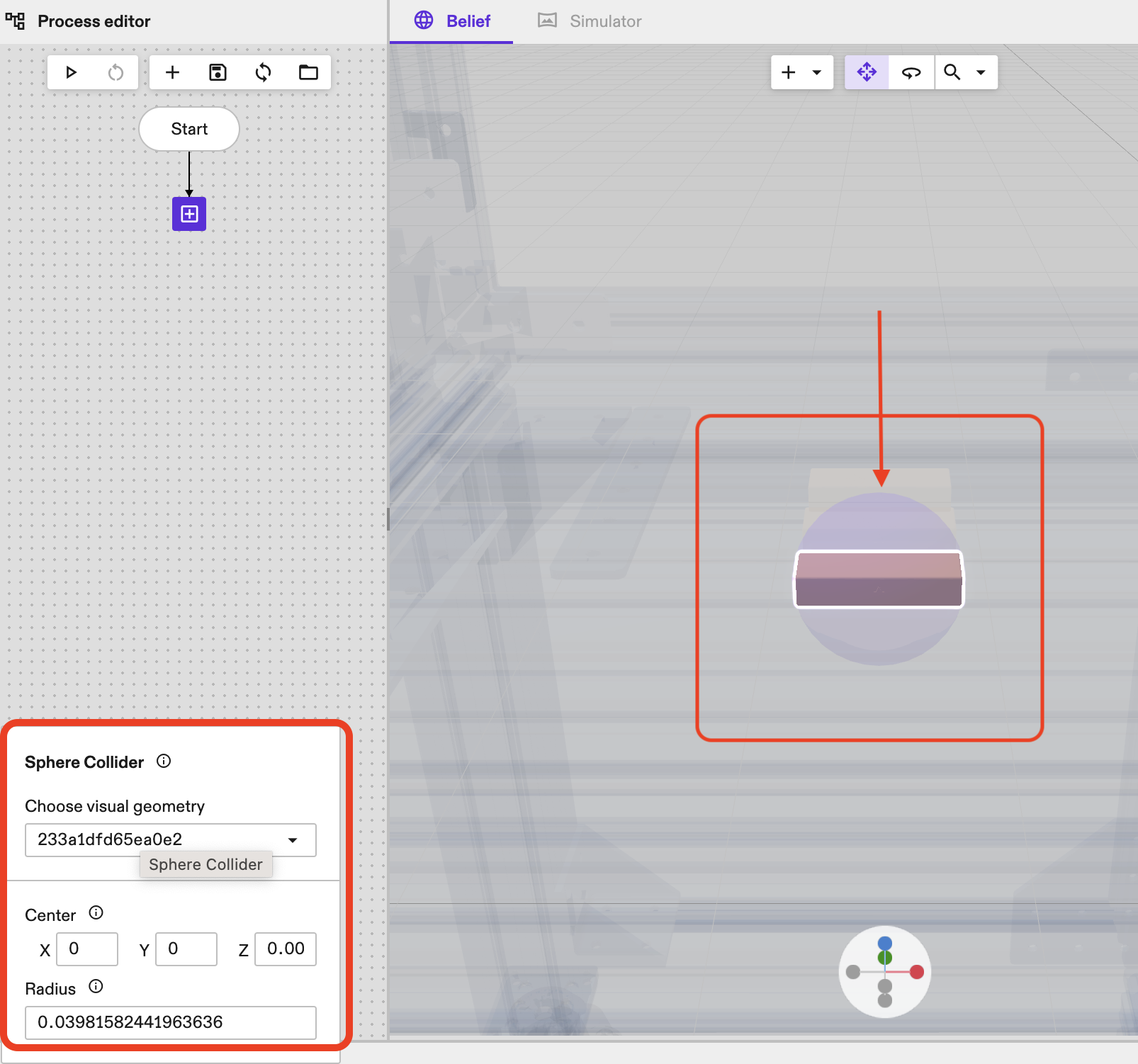
Similarly, a cubical or cylindrical collision mesh can also be added. Change the scale as required.
Simplify the collision mesh
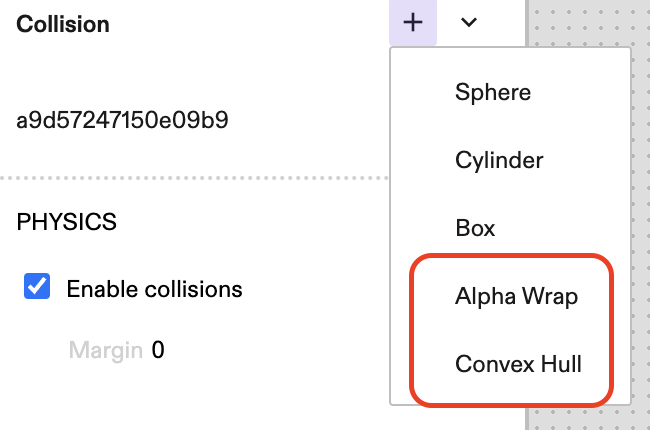
The Flowstate Editor provides a way of simplifying a complex collision meshes as well. This procedure is recommended to improve performance of collision checking operations. The two algorithms available are alpha wrap and convex hull.
Convex hull is a geometry processing operation that is similar to wrapping a geometry in aluminum foil using the least amount of foil. The convex hull of a geometry is well-defined, and therefore does not take any parameters, and the algorithm for doing this is very fast, so even complex geometries can be processed quickly using this simplification. The downside is that generating a convex hull is not very accurate when you have complex geometry. Intricate cavities (such as the hole where a screw would fit) are lost. Read more about convex hulls here.
Alpha wrapping is a more complex geometry simplification that can be thought of as the surface defined by rolling a ball of a certain diameter along the input surface. This can produce a more accurate approximation of concave objects (think of e.g. a banana), but it requires more computational processing and therefore will take longer. The 'alpha' value, i.e. diameter of the ball is a tunable parameter that needs to be adjusted to find the best combination of complexity versus accuracy of the result. This parameter must be specified and must be a positive number. Read more about alpha wrapping here.
To simplify a mesh:
-
Click the + to choose a simplification option.
-
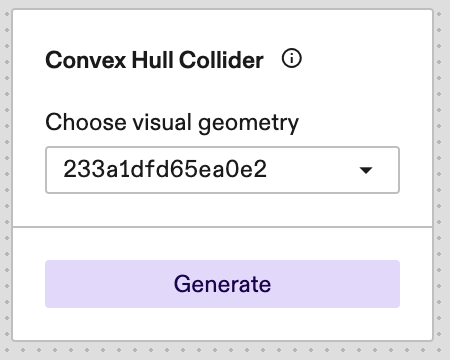
Click Convex Hull if that is the preferred option. In the dialogue, choose the geometry from the drop-down and click Generate. Observe the final collision mesh. The new mesh created would also be visible in the Collision panel on the left.
-
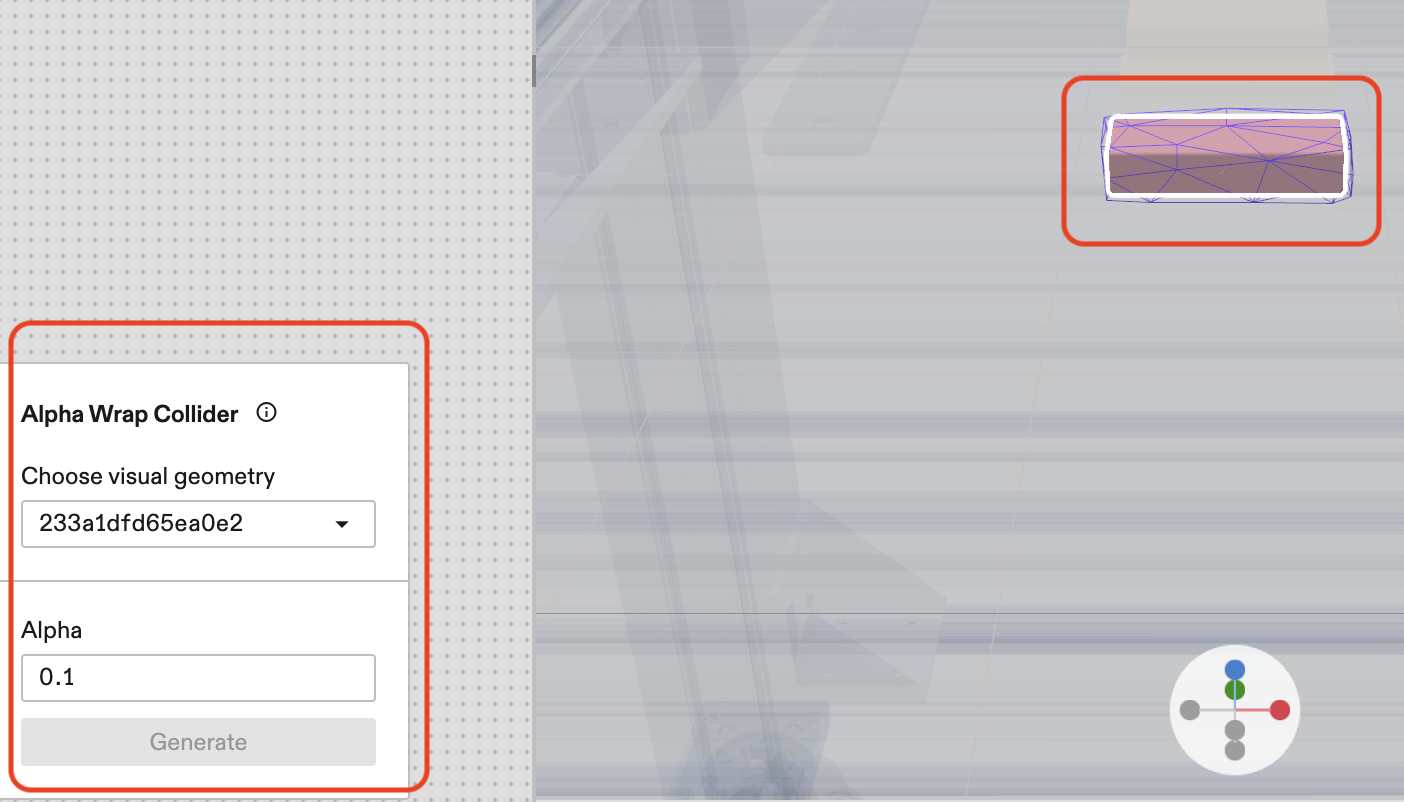
Click Alpha Wrap to run the alpha wrapping algorithm from the drop down. Select the Geometry from the dialogue and set the Alpha value. Then click the Generate button. Observe the difference in the collision mesh in the editor. You can select the alpha wrapped mesh by clicking the mesh under the Collision panel on the left.
Set margins
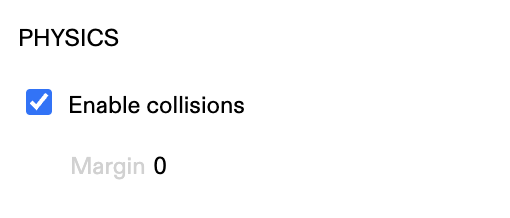
The collision margin can also be set for a particular object. This can be done by entering the value (in meters) in the panel on the left.
Press "c" to quickly toggle the visibility of all collision geometry in the workcell.
To add a standalone primitive, see Creating a new object.
Change simple material properties
Changing material properties will alter the object's geometry, and permanently if applied. Several preset material properties are available to apply common combinations that emulate a certain kind of material (i.e. Shiny Metal, Clear (transparent) Plastic, etc).
To select a preset, click the Material preset drop-down and make a choice from the available options.
Alternatively, or in addition to selecting a preset, use the available material properties to further customize the material (i.e. by changing its color or roughness).
With all changes ready, click Apply Material to apply the changes to the world. To revert these changes, click Edit > Undo (or by use the undo shortcut).