Manage collisions
When running in simulation mode, it is sometimes desirable to deactivate collision-checking between objects. This can be accomplished using the Manage Collisions button, available in the Collision section.

- Select an object in the scene and Click Manage Collisions in the Collision panel. This opens the Collision Rules dialog. This dialog lists the exclusions that are enabled. If no exclusions have been added, the dialog shows helper text and a link to this documentation.
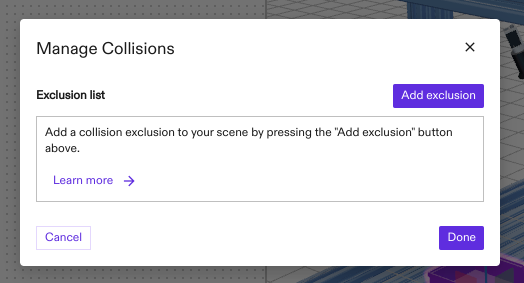
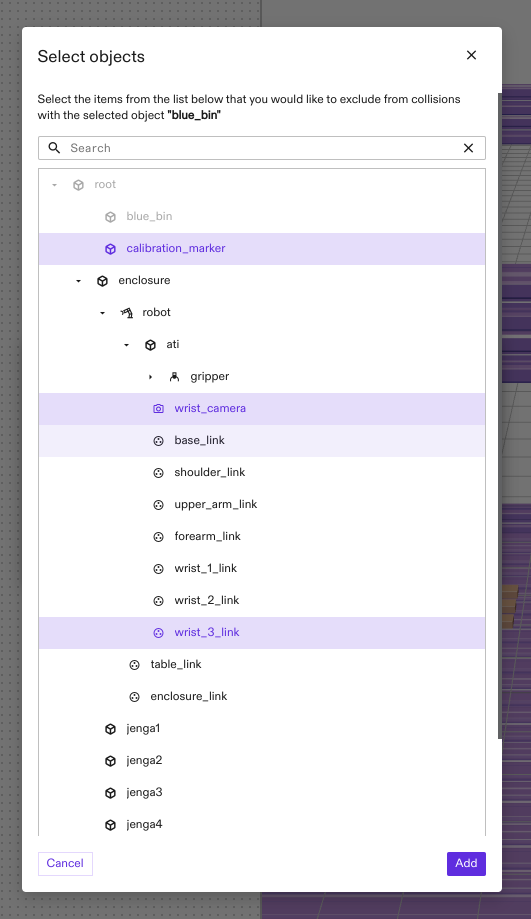
- Click Add exclusion on the upper left of the dialog. This opens the Select objects dialog. Browse the tree of collidable objects and select that ones that should be excluded from collision checks. It is possible to select multiple objects and toggle selections by holding the ctrl key while clicking. The search bar can be useful in finding specific objects within complex scenes. Click the Add button to confirm the selection.
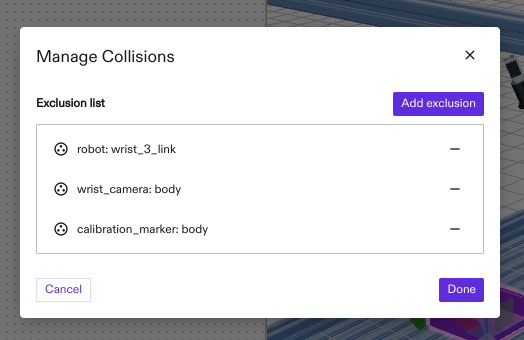
- The Collision Rules dialog now shows a list of the objects that are excluded from collision checks. Click the - button next to each rule to remove the corresponding rule. Add more rules by returning to the Add exclusion dialog. Once rule selection is complete, click Done to exit the dialog. The collision exceptions are now active and will be saved with the scene.
- The Manage Collisions button now shows the number of collision exceptions that affect the selected object.
