Manage data flow
Flowstate process authoring allows modeling data flow between process flow nodes, particulary skills. Output data of a certain node or skill can be used as input data to another skill.
As a single output can be used in multiple inputs, Flowstate uses global variables to make outputs available throughout the process flow.
Skill inputs can be linked to existing global variables if their types match.
Manage data flow links
If a skill provides output values they are shown in the Output tab of the skill properties:
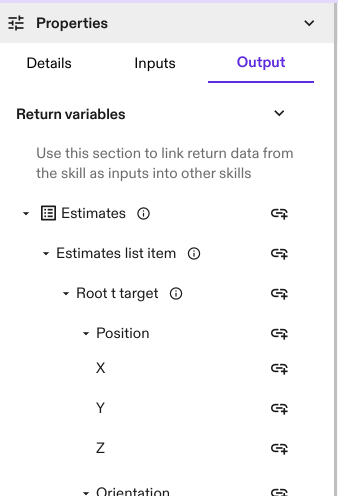
The linking icon next to each output allows to create, edit, and delete links assigned to it.
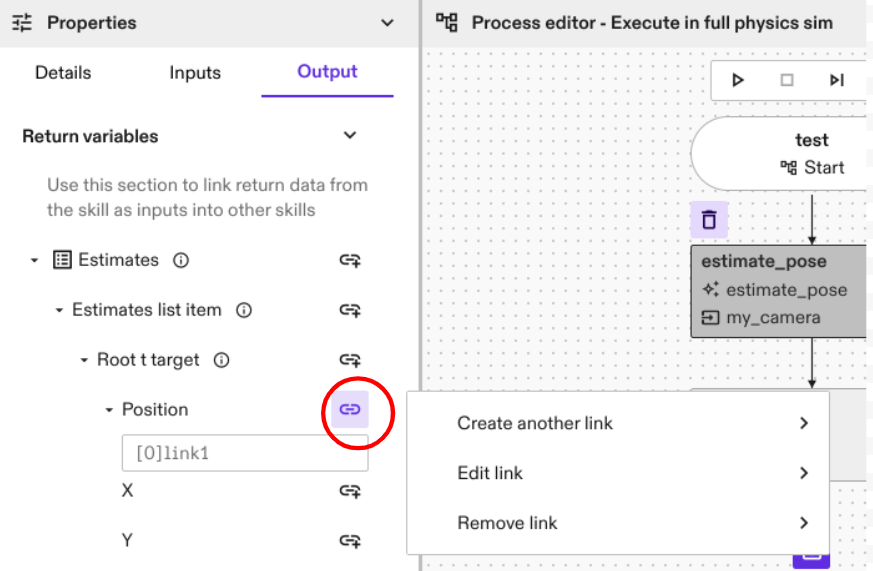
Create a link
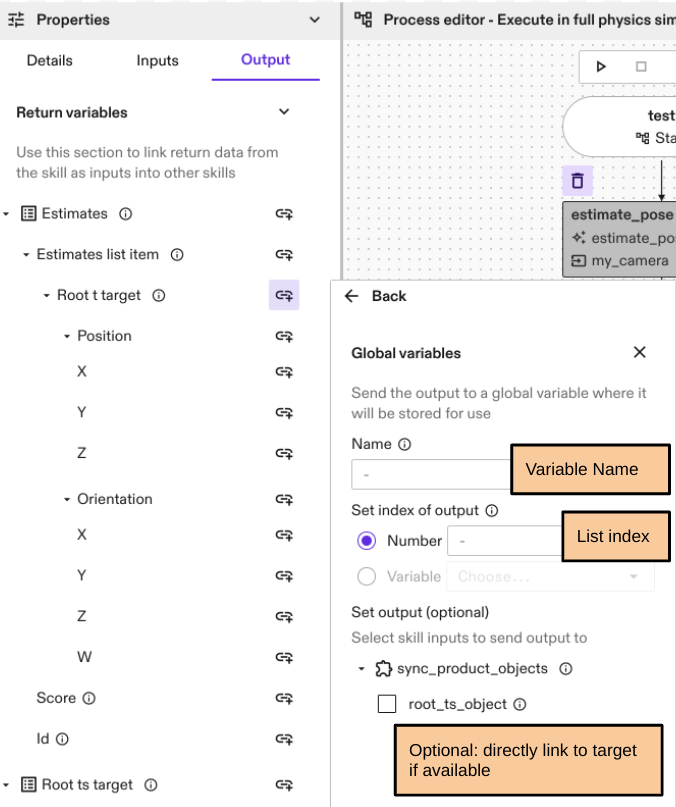
When you create a link, you need to assign a name to it. The linked output will be accessible in a global variable with this name. If the output is a list item or a child of a list item, you must also specify the list index that should map to the global variable. This list index can be a fixed number or dynamically selected using another global variable as the list index. For example, the global variable of a loop counter can be used to access certain list indexes.
The link creation window lists all skills with compatible inputs to the created variable that exist in the process flow. Inputs can be selected as link targets to create a data flow mapping between the two skills. This is optional. You can also link the inputs later by clicking on the link icon in the input panel of the respective skill.
When outputs are linked to global variables, they show up in the global variables table. Some node types expose global variables by default. For example, when adding a loop node to the process flow, its iteration counter is automatically assigned to a global variable.
Link skill inputs to existing global variables
If a skill provides input parameters they are listed in the Inputs tab of that skill.
Skill inputs can be either parameterized with fixed values or mapped to the outputs of other skills using global variables.
In case the global variable to be used as an input already exists in the process flow, an input can be linked to it by clicking the linking icon next to the input.
If the linking icon of an input is greyed out and not clickable, this means that there is no defined global variable that matches the data type of this input. Create a matching global variable from a skill output first.
The values of global variables are set when the outputting skill is executed in a process flow. After the current process finishes, they stay valid until the next process is started. If a skill tries to use an input in a process flow before it has been populated by the outputting skill, the process fails due to missing data.
Tutorial example
See Pick and Place Module 5 for an example. Data flow is used in Lesson 3.