Inspect and edit Process details
Processes are currently being migrated and unified as a type of Asset. Documentation on this page primarily describes Process Assets rather than the old (legacy) style of Process. Differences between the new asset flows and legacy flows are pointed out where applicable.
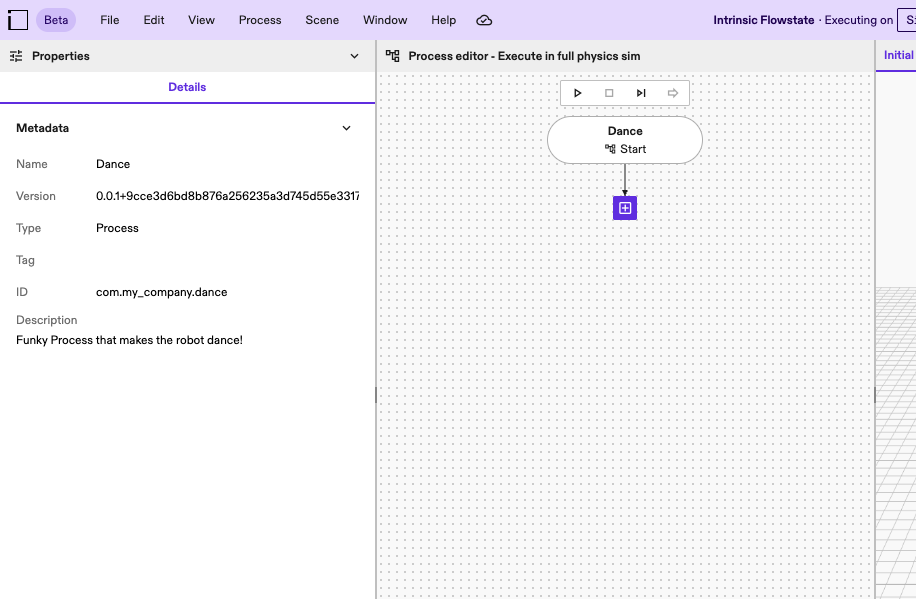
Process details provide additional information about the Process. This includes the name of the Process, a textual description of its contents (optional), and the metadata associated with the Process asset (version, ID, package). You can inspect the details of the Process that is currently loaded into the Process Editor. To inspect and edit Process details, first follow the steps to create a new Process or to load an existing Process.
You can inspect the details of the Process that is currently loaded into the Process Editor. You can also edit some details of the Process. The display name of the loaded Process will be shown in the rounded start node.
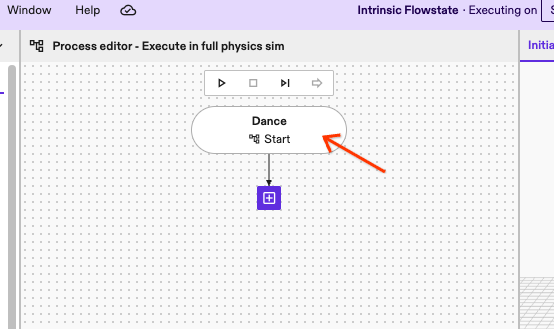
Click the start node with the display name of the Process. This will load the Details tab in the Properties panel on the left of the Process Editor. The Details tab shows you information about the Process and allows you to make changes.
- edit the display name and description of the Process
- mark the Process as a subprocess - see "Make a Process reusable" for more information
- uninstall (remove) the Process from the Solution - see "Uninstall existing Process" for more information
Inspect Process asset details
This workflow is only available for Process Assets. Legacy Processes will not show up in the Installed Assets panel.
Since Processes are Assets, you can view the details that are part of the asset metadata from the Installed Assets panel.
The information in the Installed Assets panel is the same information as that in the Details tab of the Properties panel. The Installed Assets panel is consistent for all types of Assets and read-only.
Find the Installed Assets panel in the bottom right of the Solution Editor. Inside the panel, find the Processes entry.
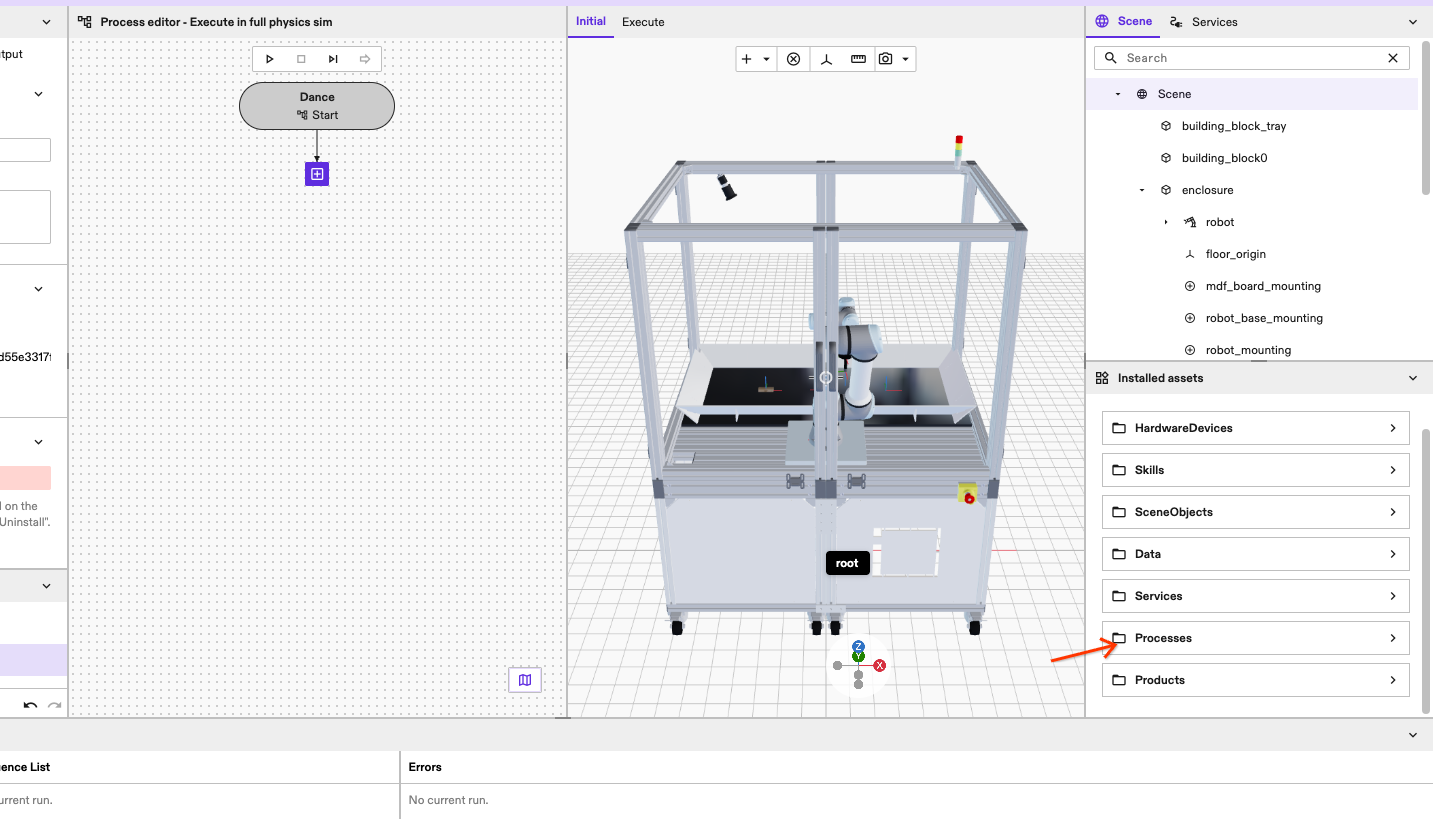
Click the Processes entry. You will now see a list of available Processes in the Solution.
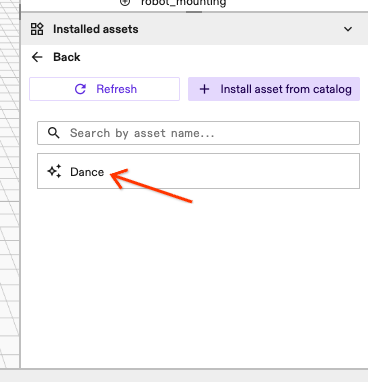
Select the Process you want to see asset information of. This will open a different Details tab in the Properties panel on the left side of the Process Editor. The panel displays read-only information about the Process asset.