Update hardware version
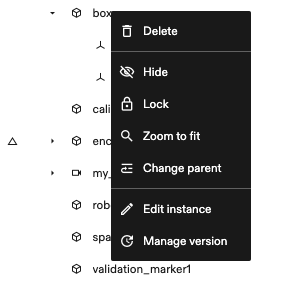
To check for updates on a specific asset within your solution, right-click the object in the Scene panel on the right and click Manage version to see the table of versions.
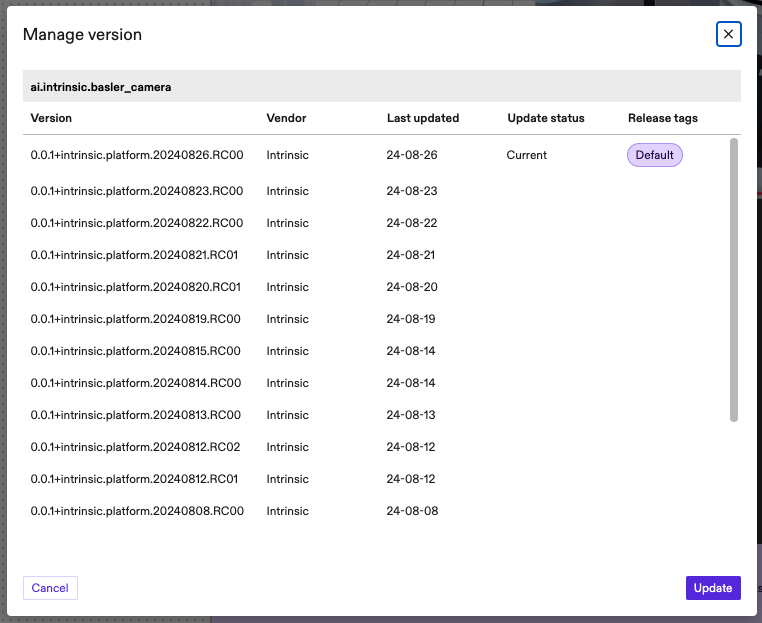
The Version column displays the full version in semver format.
The Vendor column names which organization released the asset.
The Last Updated column shows the timestamp in YY.MM.dd format that the version was updated.
The Update status column shows the 'Current' version. For every other version, select the version you want to switch to and click Update button. This can be used to revert and advance versions.
The Release tags column displays all the current release tags of the asset.