Recover your IPC
This guide provides you with all relevant information on how to recover an IPC with IntrinsicOS after a critical failure or reset, with the goal to bring the IPC back into a functional state.
Prerequisites
- A computer on the same network as your IPC
Download config file
Open https://flowstate.intrinsic.ai
- Make sure you have selected the correct organization in the organization selector in the top left.
- Select IPCs in the left sidebar
- Click the overflow menu (⋮) on the righthand of the IPC you want to restore
- Open the Backup and Restore dialog
- Download the configuration via the Download button in the dialog
Store the configuration file locally so you can upload it to the IPC.
Open the restore page
Open https://intrinsic.local:2461/web/config/restore in the browser on your computer to access the recover page on the IPC.
Upload the configuration file you downloaded in the previous step to the IPC. And press Submit.

Redeploy latest solution in registration
To add an IPC to your organization, follow the steps in Register IPC.
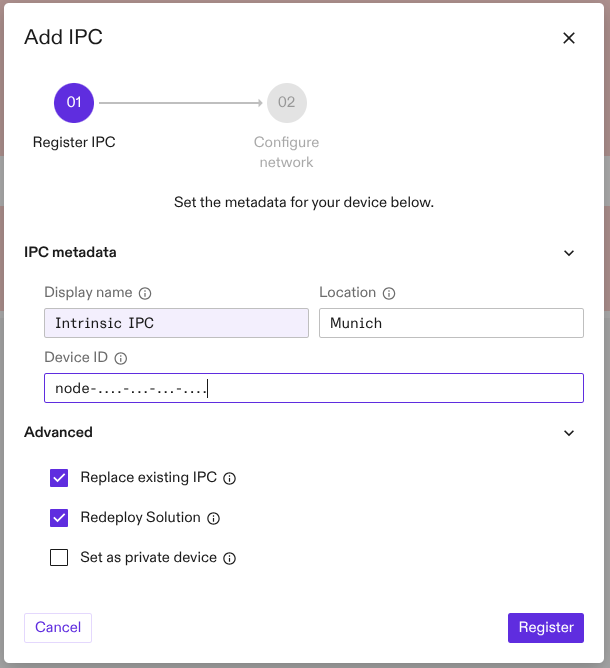
If you need to restore the last active solution to an IPC that is already registered, select Redeploy solution and ensure Replace existing IPC is checked in the registration dialog registration dialog.
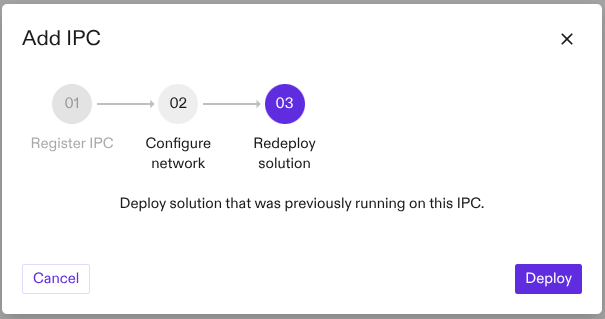
To do so: Enable the checkbox on the first page of the registration dialog; this adds a new step to the process where you can then click Deploy.
This will add a new step to your dialog. Once it is shown click "Deploy".