Manage IPCs
You can manage the version of the Intrinsic software on your industrial PCs (IPCs), as well as editing details such as name, location and update policy.
Manage IPCs
Go to https://flowstate.intrinsic.ai, then select IPCs in the side panel.
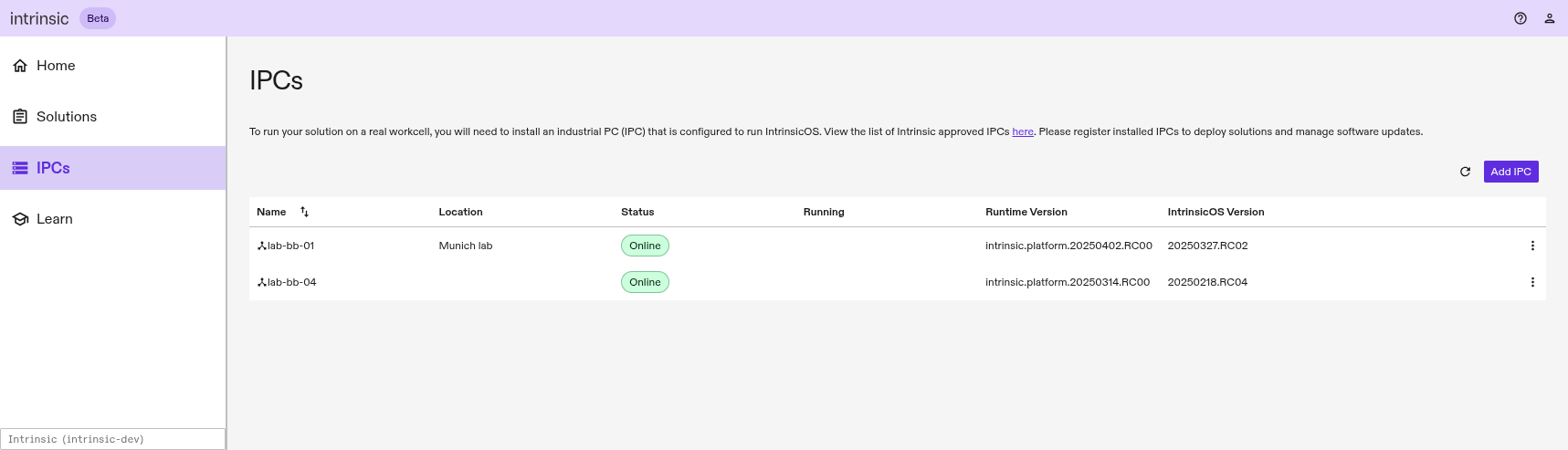
This shows the following information for each IPC in the selected organization:
- Name: This is a human-readable name for the IPC. It is also shown when selecting a workcell to start a solution on hardware.
- Location: This is a human-readable location. It won't be automatically detected or updated, so you should remember to change it when moving the IPCs.
- Status: One of the following:
- Online: The IPC is turned on and can reach Intrinsic servers.
- Offline: The IPC cannot reach Intrinsic servers.
- Warning: An unexpected error was detected that may need attention. If no helpful error details are shown, contact Intrinsic support.
- Error: An unexpected error was detected that prevents use of the IPC. If no helpful error details are shown, contact Intrinsic support.
- Updating, Registering, or Configuring: Transient states that will change to Online or Error.
- Running: The name of the running solution, if any.
- Runtime Version: The version of the Intrinsic runtime software on the IPC. This may be blank if the IPC is still registering.
- IntrinsicOS Version: The version of the operating system on the IPC. This may be blank if the IPC is still registering.
- Update version: An Intrinsic software update is available and can be assigned by clicking this. If an OS update is also needed, the IPC will reboot. If approval is required, the update will not start until it is approved.
- Overflow (⋮): This lets you:
- Edit details: Update the name, location or update policy of the IPC.
- Configure network: Configure the IPC's network interfaces, for example to set up a realtime network interface to control a robot. This is only available when the IPC is online.
- Ping test from IPC: Send a ping from the IPC to test the connection to a target device such as a robot controller or gripper.
- Remove IPC: Remove the IPC from the organization. If the IPC is online, it is reset to the unregistered state. If it is offline, you can reset it afterwards with a monitor and keyboard.
- Rollback update: Undo the last update and go back to the previously installed version. This is only available when the IPC is online. Open running solution: If a solution is running, this will open the Solution Editor.
- Hardware Info: View detailed hardware specifications for the IPC.
- Open dashboard: Open the Kubernetes dashboard for the IPC.
Edit details
The Edit details item in the overflow menu (⋮) lets you enter a new name or location:
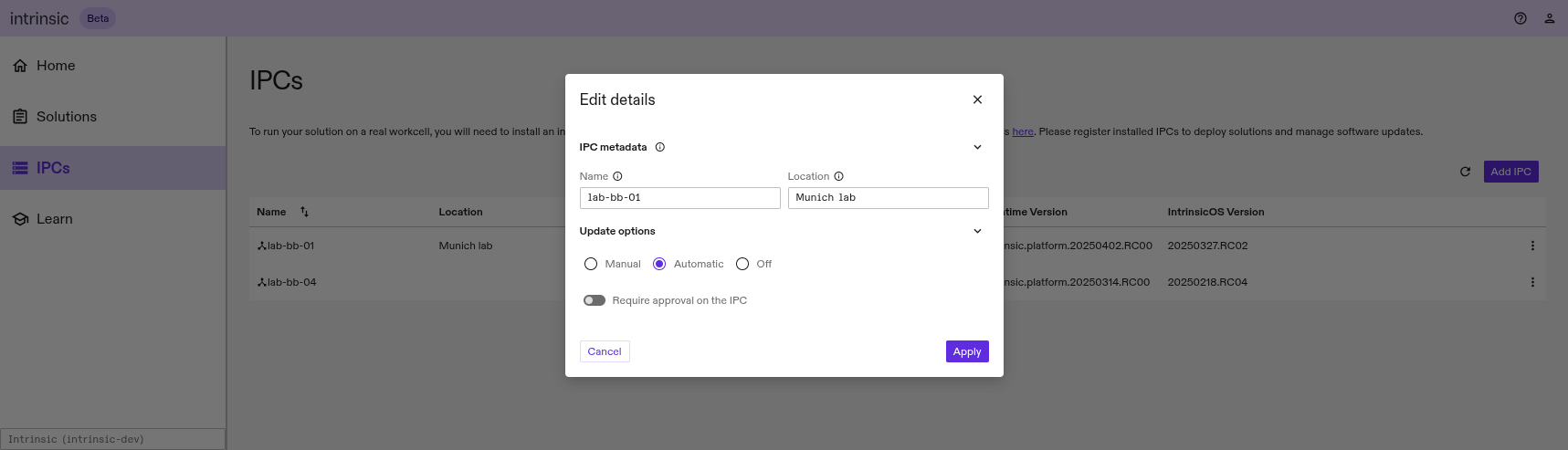
This metadata can be seen by all users in your organization.
The Update options selection lets you enable or disable updates:
- Automatic: As soon as an update is released, it will be assigned to the IPC.
- Manual: You can manually assign updates with the Update version button, or with inctl.
- Off: Updates are disabled until you set this to Manual or Automatic.
- Require approval on the IPC: If this is disabled, the IPC will apply each update as soon as it is assigned (either automatically or by assigning the update). If this is enabled, the update requires explicit approval from either a local operator with the HMI or a remote user with inctl before the update can proceed.
Update an IPC
By default, IPCs are automatically updated each week, as described in the update policy. To opt out of automatic updates, select Edit details and change Update options to Manual.
If you don't receive automatic updates, the Update version button indicates that an update is available. To update:
- Review the release notes. Note that release notes are published monthly, but bug fixes are released weekly.
- Click Update version, and wait for the update to complete. Depending on the internet connection and the size of the update, this may take between a few seconds or up to half an hour.
- If the status becomes Error, file a support ticket. You may or may not still be able to use the previous version of the Intrinsic software, so adjust the priority of the support ticket and describe the behavior you observe.
- Otherwise, you can select Solutions on the side panel and use your updated IPC.
If you observe problems after the update, you can undo it with Rollback update in the overflow menu (⋮).
Update an IPC with inctl
The Update version button updates to the latest release. However, in some cases you may wish to update (or downgrade) to a specific version, for example to reproduce behavior observed on another IPC. In this case, you can
-
Set up your development environment so you can use
inctl. -
Find out your org ID, for example "acme_org". This might differ slightly to how your org is shown in the UI (for example "acme_org" vs "ACME Co.").
You can copy your org ID in the overview page of your Org Settings, next to your org logo. They can be reached by selecting the settings tab in the Flowstate portal. Alternatively you can copy it from the URL bar in your browser, where it appears between "/org/" and "/ipc".
-
Copy the ID of your IPC (
node-...). If you're not sure what it is, hover your mouse over the name of your IPC and copy it. -
Verify installed OS and runtime version by running:
inctl cluster upgrade --org acme_org --cluster node node-4a772612-7a97-40d3-a775-ea01351e5153 -
Identify the IntrinsicOS or runtime versions to install, for example by copying from an existing IPC or by running:
inctl asset list_released_versions --asset_types=data ai.intrinsic.os
inctl asset list_released_versions --asset_types=data ai.intrinsic.runtime -
Inside the dev container terminal, assign the update:
inctl cluster upgrade run --org acme_org --cluster node-4a772612-7a97-40d3-a775-ea01351e5153 \
--os 20251126.RC01 --base 1.26.20251201+insrc -
If approval is required, approve the update as described below.
Approve an update
When Require approval on the IPC is enabled, updates must be approved by an
operator. Normally, this will be done in an HMI that communicates with the
IpcUpdater service. However, during
development it is also possible to do this with inctl in the dev container:
-
Set up your development environment so you can use
inctl. -
Find out your org ID, for example "acme_org". This might differ slightly to how your org is shown in the UI (for example "acme_org" vs "ACME Co.").
You can copy your org ID in the overview page of your Org Settings, next to your org logo. They can be reached by selecting the settings tab in the Flowstate portal. Alternatively you can copy it from the URL bar in your browser, where it appears between "/org/" and "/ipc".
-
Copy the ID of your IPC (
node-...). If you're not sure what it is, hover your mouse over the name of your IPC and copy it. -
Inside the dev container terminal, accept the outstanding update:
inctl cluster upgrade accept --org acme_org --cluster node-4a772612-7a97-40d3-a775-ea01351e5153The output will ask you to confirm the update:
Update from 20250306.rc00:xfa.20250218.RC04 to 20250402.rc00:xfa.20250327.RC02 is available.
Are you sure you want to accept the update? [y/n]warningAvoid depending on the format of the string describing the update ("20250402.rc00:xfa.20250327.RC02") in the update above. This is used to avoid race conditions when an update is assigned in between the check of the available update and the approval of the update, but the format will change in future to allow updating solutions at the same time.
Instead, use the user_data in the ClustersService API to describe the update or provide release notes in a way your HMI can display.
noteIf you see
Error: update not available, check whether the IPC is already Updating. If not, double-check that you assigned an update and that approval is required on this IPC.
Hardware Info
The Hardware Info displays detailed hardware specifications for the selected IPC or cluster.
The following information is provided:
- IPC: The vendor and model of the IPC
- CPU: The vendor and model of the processor
- Memory: The total physical RAM detected, as well as the number of populated memory slots
- Mainboard: The vendor and model of the mainboard, as well as the BIOS vendor and version
- Storage: The model and capacity of each physical disk
- Network interfaces: The vendor, model, and MAC address of each network interface card (NIC)
- GPU: The vendor and model of each graphics processing unit (if present)
Note that hardware information relies on the IPC synchronizing its state with the cloud. If the IPC is offline, newly registered, or running an unsupported version of IntrinsicOS, this information may be temporarily unavailable.
Debugging tools
The following tools are intended for debugging unexpected behavior on an IPC.
Ping test from IPC tests connectivity to local network devices such as robot controllers. First, find the IPv4 address of the local device: This might be shown in the network settings on the teach pendant, for example. Then, enter it into the ping test dialog and select "Ping target" to see if the network is properly configured or not.
Open dashboard displays the logs of various software processes ("pods") on
the IPC. For example, if you encounter problem during simulation, you might need
to restart gzserver:
- Select Open dashboard for the IPC in question.
- In the dropdown at the top, select the
app-intrinsic-app-chartnamespace. - Scroll down to the row starting
gzserver-...and from the overflow menu (⋮), select Logs. - If the logs indicate an unexpected error, select
gzserver-...in the blue bar at the top of the log view to return to the pod view. - Select the delete icon (tooltip: Delete resource) at the top right of the page, and confirm deletion in the dialog.
- Select Pods in the blue bar, then open the logs for the newly-created
gzserver-...pod as before.
If you need to use the Kubernetes dashboard to address problems in Flowstate, please file feedback or a support request if you haven't already, so that the team can address the root cause of the issue.
It's not possible to open the Kubernetes dashboard for solutions running on VMs: If you need to restart pods on a VM, you can stop the solution and start it again on a new VM.
Each IPC on this page can also display various alerts to indicate problems that need attention.
Remove an IPC
The behavior of the Remove IPC function depends on whether the IPC is online or offline:
- If the IPC is online, it will be reset to the unregistered state. It will reboot, after which point it can be registered again to another organization.
- If the IPC is offline, it will be deauthorized. When it is next turned on, it will be unable to connect to Intrinsic servers. You will need to reset it or reinstall from USB before it can be registered again.
In both cases, it will no longer be shown on flowstate.intrinsic.ai after removal.
Next steps
To use your IPCs, select select Solutions on the side panel and then start your solution on hardware.