Knowledge articles
This guide provides solutions to common issues users may encounter while using Flowstate along with a list of known issues. You can browse through the categorized sections to discover troubleshooting solutions related to your area of interest or concern.
If you don't find the answer you are looking for, reach out for support using channels listed in Request Support.
Object spawner
Note that some spawned objects are only created in the physics simulator, not in the belief world. This means that the spawned objects are not available for editing nor are their poses immediately available for use with other skills. However, they are rendered using simulated cameras and can be manipulated using simulated robots.
See our object spawner documentation for more information.
Opening a solution (slow loading time)
When you navigate away from your Solution, or when you stop a solution, the underlying cloud infrastructure is reclaimed, to optimize your usage limits. This means that re-opening a Solution may take some time. We are working on improving the UX.
Troubleshooting
Perception
Cameras
Q: Why does my camera not show up in the camera list when I press “Connect”?
If your camera doesn't appear in the list after connecting it to your IPC, try the following:
- Check the physical connection: Ensure the camera is securely connected to the IPC network.
- Verify power: Confirm that the camera is receiving power.
- Check vendor UI: If your camera has its own user interface (UI), check if it displays images to confirm it's working properly.
Q: My camera is plugged in and shows up in the Software of the camera supplier. Why does it not show up in the camera list when I press “Connect”?
To ensure your camera is discoverable on the network, configure it for DHCP or assign a correct static IP address. Typically, the camera provider includes software for adjusting these network settings.
Ensure the assigned IP address is within the correct sub network. For instance, a device might incorrectly receive an address like 169.254.12.40, even if the intended subnet is 192.168.1.0/24. In such cases, the device requires an address consistent with the correct subnet, such as 192.168.1.50, to function properly.
Q: My camera has been successfully connected in Flowstate. Why do I get an error message about a missing resource or camera handle when I open Camera Settings or Intrinsic Calibration?
The camera setup may take longer than usual to complete, which leads to the above error message if you open Camera Settings or Intrinsic Calibration shortly after connecting the camera. Please wait a few seconds and open the settings or calibration dialog again. If the error persists, refer to question My camera is still not working. What else can I do?
Q: Why does my camera stop working randomly?
Ensure that all network cables are functional (e.g. replace them and try again).
Q: Why is my camera image black?
- Make sure to remove the lens cover.
- If
ExposureTimeorGainare fixed, try to increase them.
Q: Why is my camera frame rate very low?
- Make sure to use appropriate network cables with Gigabit support.
- Make sure to use a compressed pixel format such as
BayerRG8. - Disable HDR or automatic settings (
ExposureAuto,GainAuto,BalanceWhiteAuto) in case you don't require them. - If you require automatic exposure (
ExposureAuto), try to set the maximum exposure time used during calculation to at most 500000 μs. The corresponding parameter is vendor dependent and may be named for exampleAutoExposureExposureTimeUpperLimit,AutoExposureTimeUpperLimitRaw,BrightnessAutoExposureTimeMax,ExposureAutoMax. - If possible, try to set the MTU of all involved network devices to 9000 (jumbo packets). Optionally, if the camera doesn't support auto packet size discovery, manually set the
GevSCPSPacketSizeto 9000 as well. - You can try to manually decrease the frame rate by lowering
AcquisitionFrameRate. - You can try to manually decrease the resolution by lowering
Width/Height.
Q: My camera is still not working. What else can I do?
- Make sure to use the latest camera firmware.
- If nothing else helps, you can try to unplug and replug the camera. Afterwards, wait until the camera is connected, then in Flowstate go to File | Service Manager, select your camera, click Clear error, then toggle from Disabled to Enabled.
Q: I am trying to change camera settings, such as gain or exposure time. Why am I getting a GigEVision write_register (access denied) error?
Certain camera drivers do not allow specific combinations of settings. For instance, they may not permit setting a manual value to Gain (resp. ExposureTime, BalanceWhite) while GainAuto (resp. ExposureAuto, BalanceWhiteAuto) is enabled. If you encounter this error for the above combination of settings, switch off the automatic gain / exposure time / white balance selection before you re-try to set a manual value.
Intrinsic Calibration
Q: Why can intrinsic calibration not be started?
For cameras with factory-calibrated intrinsics (e.g. Photoneo, IPS), the intrinsic calibration UI will be disabled.
Q: Why do I see no calibration pattern in the solution?
Make sure that you install the respective pose estimator asset of the charuco board to your solution. In the Calibration pattern drop-down menu of the Intrinsic calibration dialog, click on + Add charuco pattern from catalog, select the estimator you want to use, then Add.
Q: Why is the calibration pattern not detected?
- Make sure that the calibration board is visible in the camera image.
- Make sure the charuco board you present to the camera exactly matches the selected descriptor file.
- Make sure there is only one charuco board visible in the image.
- If the images are too blurry:
- Make sure that HDR is off (HDR combines several exposures, and the underlying motion of the manually held board will lead to blurry images).
- It is important to hold the board still at locations where we want the process to acquire the frame. If the images are still too blurry despite doing this, the exposure time might be too long. In this case, set the exposure time to fixed/manual and a value around or below 0.1 sec. If the images appear dark, but the process doesn't complain, that's fine. If the process complains about too dark images, try increasing the Gain value (after having made sure that you turn on all available lights).
- Make sure that the lens focus is set correctly for the working range. This is the case if images are sharp within the working range. If this is not the case, follow the instructions to set up the lens focus correctly.
Q: What can I do if the intrinsic calibration error is too large?
- This can be caused by low quality calibration boards (e.g. self-printed, not flat). We recommend obtaining a high-quality calibration board, e.g. from
calib.io. - Tips for high quality intrinsic calibration
Camera-Robot Calibration
Q: Why do I see no calibration pattern in the solution?
Add one of the pre-configured charuco boards from the Assets catalog. In the Calibration pattern drop-down menu of the Camera-robot calibration dialog, click on + Add calibration pattern from catalog, select the board you want to use, then Add. Similarly, in the Pose estimator drop-down menu, you can add the respective pose estimator asset. Note that we only support a sub-set of charuco pose estimators from calib.io at the moment.
Q: What can I do if the calibration error is too large?
- Make sure the calibration pattern pose estimator matches the calibration board shown to the camera.
- Make sure there is only one charuco board visible in the images acquired during calibration.
- Are the cameras rigidly mounted? Screws tightened properly, camera attachment is rigid and not flexible?
- Note: Attachments should be possibly short to avoid vibration effects and to not increase robot accuracy errors.
- Is the lens focus set correctly for the working range? If not, the objects appear blurred in the image. If needed, set the lens focus according to the instructions.
- Has the intrinsic calibration been performed? You can check the intrinsic calibration by placing a charuco board in a fixed location to the camera, then run
estimate_and_update_posefor this board, and finally open the camera view and make sure the sim/real overlay matches exactly. If the overlay does not match, the intrinsic calibration of the camera has to be redone. - Make sure that the robot has been mastered.
- In case of UR robots, make sure that the correct kinematic calibration was applied to the robot.
Pose Estimators
Q: Why can't I select my object in the training wizard?
Currently we only support “simple” (i.e. rigid) world objects (i.e., robots or articulated grippers can’t be handled). Also, there is currently no option to select a sub-part of an object.
Q: Why can't I select my camera in the training wizard?
Make sure that the camera is working properly (e.g., opening the camera view should work) and make sure that the camera offers the right modalities needed for the selected pose estimator (RGB vs. depth).
Q: I moved the part into the camera view. Why does it not show up in the camera image of the pose estimation UI? Changes made to the belief world are not automatically propagate the simulation world (which is the world the camera view shows). To sync the changes over, you have to run a process (an empty one is sufficient) or enable the robot - this syncs the belief world with the simulation world.
Q: Why is my ML pose estimator stuck in ‘Pending’ state?
ML pose estimators can
be in Pending state for quite some time, while they are waiting for GPU
resources to become available. Our GPU clusters have limited resources, thus a
scheduled job needs to wait until enough GPU resources become available before
starting a training.
Q: Why do I see out of quota when I try to train a new pose estimator?
Ask us for new quota: At the moment, identify the responsible Account Executive from Revenue and ask if quota can be extended.
Q: What does the error Mesh can’t be loaded mean and why can't I train the pose estimator for my object?
Ensure that the mesh of the object has at most 1 texture. We are actively working on removing this limitation.
Q: Why do I get a timeout when running a pose estimator?
- Some data files need to be downloaded which can take a while depending on the internet connection. The first warm-up call to the pose estimator may take some minutes as well. Once the data is downloaded, running the pose estimators should be much faster.
- For some pose estimators (in particular edge-based and surface-based), it can easily happen that the parameters are chosen so that the pose estimation will time out. Try to reduce the pose range during training, in particular try to increase the minimum distance and reduce the number of views. Additionally, try to increase the minimum score value (inference parameter).
Q: Why do I get an error that the intrinsic parameters don't match?
The pose estimator was trained on a different camera (meaning different intrinsic parameters). Possible reasons could be that you selected a different camera during the inference or that the pose estimator was trained before the camera was calibrated (in which case you need to retrain the pose estimator).
Q: My pose estimator doesn't detect any/all objects. What can I do?
This can be caused by various reasons. Here are a couple of things to try or check:
- Does it work in simulation/real? Make sure to try out the pose estimator in simulation. If it’s not detecting anything in simulation it might be that the object is outside the pose range (see below). If you want to move the object and see it updated in the simulation you may need to run an empty process which will reset the simulation.
- Are the objects visible in the image? Are they sufficiently large?
- If you trained an ML-based pose estimator: Are the material properties of the object set properly? Does the digital twin resemble the real object?
- Is the pose range correct?
Depending on the configured pose range, the pose estimator will only work within that region.
- Try to move the object closer/farther away and make sure that the minimum and maximum distances of the pose range are adequate.
- Try to rotate the object and make sure that the view from which the camera sees the object is within the defined range of views (you can open the pose estimator training parameters).
- Try to make the problem simpler with a differently colored background and a single isolated object.
- Is the object symmetric? Did you try to auto-detect the symmetries? Even if the object is not perfectly symmetric it can help to specify the almost-symmetry axis.
If none of the above seems to be an issue, contact Support with information about the scene so that the issue can be reproduced, i.e., run the estimate_pose skill which demonstrates the failure and attach the "Support Information" to the ticket.
Solution building
Q: If I try to navigate to a Solution using the URL, I get a 403 error.
That is because the infrastructure that was supporting the Solution has been reclaimed, either due to inactivity or the Solution being stopped, or navigating away from Solution Builder. You should always access your Solutions using the Flowstate Editor and not rely on URLs since they are ephemeral.
Q: If I try to install an asset from catalog, I get CreateWorldFromResourceInstances.: rpc error: code = InvalidArgument error?
This could occur if a software update is pushed while your solution is running. To fix this issue, follow these steps:
-
Stop the solution.
-
Start the solution. At this point, you would be prompted to Update the solution.
-
Once the update is done and the solution is running, you should be able to install assets from the catalog.
Q: Python script node fails with 'Failed to start code execution'. How do I make sure the code execution service is available?
This error could occur when the image for the code-execution service is not completely downloaded, yet. This could be due to either:
- A slow download still going on (e.g., after an update).
- The image host (ghcr.io) not being reachable by the workcell.
In the first case, please wait until the download has completed and try again. In the second case, make sure that the image can be downloaded, for example by configuring a firewall to allow ghcr.io.
You can determine the reason by viewing the Kubernetes dashboard on the IPC section for your workcell in Flowstate.
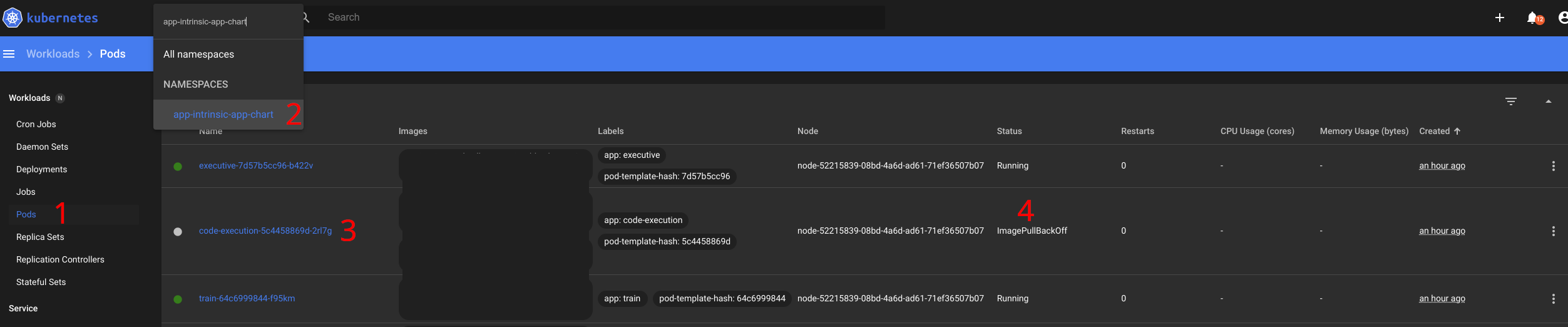
- Select Pods
- Enter the app-intrinsic-app-chart namespace
- Look for a pod starting with code-execution-
- If it's Status is green and indicates "Running" you can try again. Otherwise click on the pod for details.

Look for details on the containers in the pod. It might show that the image is still downloading. In this case wait for the download to be completed.
If it shows "ImagePullBackoff" then the indicated image cannot be downloaded. Unless the host ghcr.io is down this indicates that the URL is not reachable.
Q: When I try to save the solution, I get an error saying "cluster document too large"
This can happen in rare cases if you parameterize skills in your process with large chunks of data (e.g. a high-resolution camera image). You can check if such large static parameter data is actually necessary or if you could get the data more dynamically, e.g. by linking the respective parameter to the output of another skill. To mitigate the situation, you can try to delete skills with large parameter data from your process (or delete the whole process) and save again. If this does not solve the issue, reach out to our support team to discuss further options.
Q: When loading a solution (e.g., pick_and_place_module1) in the Flowstate Solution Editor, the 3D Scene Editor panel appears completely blank or white.
The 3D Scene Editor uses intensive graphics rendering capabilities that require the web browser (like Google Chrome) to utilize the computer's Graphics Processing Unit (GPU). If the setting for graphic acceleration is disabled in the browser, the editor cannot render the 3D scene, resulting in a blank screen. To resolve this issue, you must ensure that graphic acceleration is enabled in your Google Chrome settings.
- In the System settings, look for the option:
- Use graphic acceleration when available
- Ensure this toggle switch is moved to the ON (blue) position.
Motion planning
Q: What do I do if my motion planning fails to create a path?
You should check (e.g. with the reachability analysis tool) that the target frame is actually reachable. Additionally, try to temporarily disable the collision check, just to see where the robot ends up, to exactly verify if the final solution would be in a collision. Then you can modify the object or the constraints.
Development environment
Q: What do I do if I encounter problems after an update?
-
Check the running version by appending
/versionto the Flowstate address bar. -
Check the release notes for this version for breaking changes and required migration steps by selecting
Learn > Release Notesfrom the navigation menu. -
If you still have a problem, reach out to our support team.
Q: What do I do if my skill fails to build due to a missing display name?
A breaking change was introduced that now requires all skills to have display names in their skill manifests, that are separate from the display name of the vendor. An example error message would look like:
Failed to create skill manifest: missing display name for skill
To solve this, add and populate the display_name field in the skill manifest
for the skill. For new skills, also update the dev environment.
# proto-file: https://github.com/intrinsic-ai/sdk/blob/main/intrinsic/skills/proto/skill_manifest.proto
# proto-message: intrinsic_proto.skill.SkillManifest

id {
  package: "com.example"
  name: "demo_skill"
}
display_name: "Demo"
vendor {
  display_name: "Intrinsic"
}
options {
  python_config {
    skill_module: "examples.demo_skill"
    proto_module: "examples.demo_skill_pb2"
    create_skill: "examples.demo_skill.DemoSkill"
  }
}
dependencies {
  required_equipment {
    key: "robot"
    value {
      capability_names: "Icon2Connection"
      capability_names: "Icon2PositionPart"
    }
  }
}
parameter {
  message_full_name: "com.example.DemoSkillParams"
}
Q: What do I do if I don't see the latest SDK release on Github?
Starting with the 1.8 release, the SDK is released at a new repository:
intrinsic-ai/sdk.
If you created your Bazel workspace with an earlier release, then it
might be downloading the SDK from the old repository.
Follow the instructions below to migrate your workspace to bzlmod and the current version of the SDK.
Q: How do I migrate from WORKSPACE to MODULE.bazel
The Intrinsic SDK migrated from bazel WORKSPACE files to a new system called bzlmod.
The new system reduces the effort required to add dependencies to your bazel workspace.
Refer to the introduction to bzlmod here.
Upgrading to bzlmod is a manual process with two steps:
-
First, update your dev environment to the latest version. This will add bzlmod related files (such as
MODULE.bazel) to your bazel workspace. If theMODULE.bazelcontains agit_overriderule for the Intrinsic SDK, then change it toarchive_override. Here is a correct snippet for using thev1.10.20240805release:bazel_dep(name = "ai_intrinsic_sdks")
archive_override(
module_name = "ai_intrinsic_sdks",
urls = ["https://github.com/intrinsic-ai/sdk/archive/refs/tags/v1.10.20240805.tar.gz"],
strip_prefix = "sdk-1.10.20240805/"
) -
Second, if you have any additional dependencies beyond the Intrinsic SDK in your old
WORKSPACE, then port those dependencies to bzlmod.
The second step is only required if your bazel workspace has extra dependencies beyond the Intrinsic SDK. The process will be different for each dependency.
- For Python dependencies follow these instructions.
- For all other dependencies, follow the official bzlmod migration guide and apply the instructions there.
note
If a dependency does not support bzlmod, then use a
WORKSPACE.bzlmodfile to depend on it.
Delete dependencies from your WORKSPACE file as you migrate them to bzlmod.
You have fully migrated to bzlmod when your bazel workspace builds and your WORKSPACE file is empty.
Delete the empty WORKSPACE file to complete the migration.
Q: What do I do if I'm seeing errors regarding rules_proto when upgrading?
If your workspace was built with a previous version of the SDK (<1.13), you may seen build errors like the following:
Unable to find package for @@[unknown repo 'rules_proto' requested from @@ (did you mean 'rules_oci'?)]//proto:defs.bzl: The repository '@@[unknown repo 'rules_proto' requested from @@ (did you mean 'rules_oci'?)]' could not be resolved: No repository visible as '@rules_proto' from main repository.
This occurs because of a change in a dependency such that the SDK no longer relies on rules_proto.
The solution is to change the existing load statements to get proto_library() from the protobuf module.
Replace all instances of:
load("@rules_proto//proto:defs.bzl", "proto_library")
with:
load("@com_google_protobuf//bazel:proto_library.bzl", "proto_library")
Q: Why do I see a ModuleNotFoundError in skill logs even though the skill builds successfully?
If your skill has a dependency on a platform service and you encounter a ModuleNotFoundError in your skill execution logs:
ModuleNotFoundError: No module named 'intrinsic.perception'
This error occurs because the service dependency is missing from your Bazel build file (py_binary or py_library).
Ensure that the dependency is correctly added to the build file to resolve the issue.
For example:
py_binary(
  ....
  deps = [
          ":scan_barcodes_py_pb2",
          "@ai_intrinsic_sdks//intrinsic/perception/python/camera:cameras",
  ],
  ...
)
Q: Why do I get a "larger than max" error when my skill tries to send messages to the server?
A: By default, gRPC limits RPC messages to a maximum size of four megabytes. If your skill needs to send larger messages, you must adjust the size limit when configuring the server. There are two options to modify the maximum incoming and outgoing message size.
Below is an example of how to configure this in Python:
On the server side:
Configure the server with the following options to adjust the maximum send and receive message length:
server = grpc.server(executor, options=[
    ('grpc.max_send_message_length', MAX_MESSAGE_LENGTH),
    ('grpc.max_receive_message_length', MAX_MESSAGE_LENGTH)
])
Additionally, you can set the message size limit on the client side (skill) using the appropriate setting.
On the client (skill) side:
Set the maximum message size when creating the gRPC channel:
channel = grpc.insecure_channel(
    'localhost:50051',
    options=[
        ('grpc.max_send_message_length', MAX_MESSAGE_LENGTH),
        ('grpc.max_receive_message_length', MAX_MESSAGE_LENGTH),
    ]
)
If you're using a different programming language, refer to the respective gRPC documentation for configuring message size limits.
Hardware module and realtime control service
Q: How do I resolve ICON & HWM version mismatch error or unexpected restarts?
Real-time control service and hardware module assets in a solution need to be from the same release. If you added these assets to your solution in the same release, no action is needed.
If resource versions are mismatched, an error message indicating a version mismatch or size mismatch may appear in the Service Manager or Robot Control Panel. To resolve this, manually save a copy of the asset settings and update the the hardware version of your asset . In case of an error, the previously saved configuration can be restored, but may need to be adapted to the newer version of the asset.
We recommend updating ICON (realtime control service) and hardware module assets if you encounter unexpected restarts of those services.
Troubleshooting hardware module and realtime control service