Camera to camera calibration
During camera-to-camera calibration the relative poses between a reference camera and one or more other cameras is estimated.
This is done by capturing several images of a calibration board in different positions in the scene, and then running an optimization routine to estimate the unknown (but fixed) transformations between the cameras.
Note: A ChArUco calibration board and estimator are required for camera to camera calibration. We recommend using a professionally printed calibration board, which can be purchased, for example, at calib.io. More information on recommended patterns can be found in our hardware documentation. We do support pre-configured estimators for the patterns from calib.io that you can install from the catalog.
Prerequisites
- A solution is running on the physical workcell.
- The solution includes more than one camera resource.
- The solution includes exactly one multi camera calibration service resource, which can be added to the solution by using the catalog.
- The cameras have up-to-date intrinsic calibrations.
- A calibration plate configured for the workcell.
Open the camera to camera calibration panel
-
From the developer portal, go to the Solution editor.
-
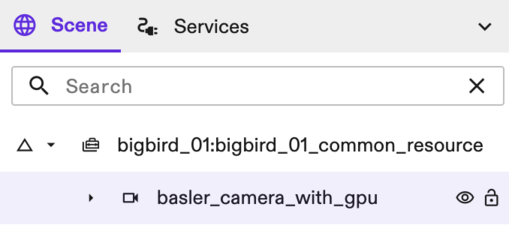
Select a reference camera in the Scene tree.
-
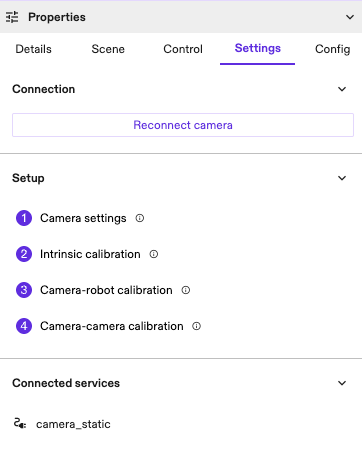
In the Properties Panel on the left side of the screen, under Settings, click the Camera-camera calibration (optional) button.
-
The camera-to-camera calibration dialog opens.
Step 1: Select calibration pattern and equipment
- Select or upload a pattern descriptor file that matches your calibration pattern.
- Select the camera equipment for calibration using the camera selectors.
Step 2: Capture calibration images
Follow the steps on the capture screen, pressing Capture as necessary, to collect calibration images until a calibration result is available. Delete any blurry or missed detections as necessary.
Tips:
- By default, the calibration service will require at least three good capture results.
Step 3: Apply the calibration results to the world
Press Apply to update the camera world poses with their calibrated poses or close the dialog without clicking apply to discard the calibration.