Create a .NET Service
Platform services (called services on this page) are programs that offer stateful capabilities to skills. This guide walks through how to create a service from a .NET project using C#.
Prerequisites
Before attempting this guide you must:
- Deploy a solution
- Set up your development environment
- Connect VS Code to your cloud organization
- Know how to create skills
- Know how to create services
Install prerequisite software
You must install:
Follow these instructions to enable building C# services in the dev container:
-
Add the
docker-in-dockerfeature to your.devcontainer/devcontainer.jsonfile:"features": {
"ghcr.io/devcontainers/features/docker-in-docker:2": {}
} -
Install version 8.0 of the .NET SDK.
wget https://packages.microsoft.com/config/debian/12/packages-microsoft-prod.deb -O packages-microsoft-prod.deb
sudo dpkg -i packages-microsoft-prod.deb
rm packages-microsoft-prod.deb
sudo apt-get update && sudo apt-get install -y dotnet-sdk-8.0
Why create a service with C# and .NET?
You should create a service with C# and .NET when your solution needs to use an existing C# and .NET codebase. While Python and C++ are the officially supported languages of the Intrinsic SDK, you may create a service using any language supported by Protocol Buffers.
Overview
The Create Your First Service guide taught you that services need at least one OCI image. This guide shows how to use Docker to create it.
A service usually isn't very useful by itself; other skills and services may need to communicate with it. If our service offers a gRPC service, then other skills and services can communicate with our service using gRPC clients. This guide walks you through the process of creating a .NET-based service that offers a gRPC service in three parts:
- Create a C# .NET program that offers a gRPC service
- Create an OCI Image that contains the program
- Create a service that runs the OCI image when instantiated
Finally the guide shows how to create a skill that calls the gRPC service to prove that it works.
Create a C# .NET program
Create a new directory called dotnet_greeter_service.
mkdir dotnet_greeter_service
cd dotnet_greeter_service
Run the following command to create a new gRPC project using C#.
dotnet new grpc -o GrpcGreeter
Notice that command created a new directory called GrpcGreeter inside of the dotnet_greeter_service directory.
Generate code for runtime_context.proto
Download the runtime_context.proto from the Intrinsic SDK and put it into the folder dotnet_greeter_service/GrpcGreeter/Protos.
cd GrpcGreeter/Protos
wget https://raw.githubusercontent.com/intrinsic-ai/sdk/main/intrinsic/resources/proto/runtime_context.proto
Insert the following text into runtime_context.proto after the syntax = "proto3"; line.
// Begin: Modified for C#
option csharp_namespace = "IntrinsicProto.Config";
// End: Modified for C#
Add <Protobuf Include="Protos\runtime_context.proto" /> into GrpcGreeter/GrpcGreeter.csproj in the existing <ItemGroup> that has another <Protobuf .../> tag.
The final group should look like this:
  <ItemGroup>
    <Protobuf Include="Protos\greet.proto" GrpcServices="Server" />
    <Protobuf Include="Protos\runtime_context.proto" />
  </ItemGroup>
Modify the C# gRPC Server
Two modifications must be made to the gRPC server generated by the .NET CLI:
- The program must start the gRPC server on the port specified by the
RuntimeContext. - The gRPC server must use HTTP/2 without TLS so skills can communicate with it without needing TLS certificates.
Replace the content of dotnet_greeter_service/GrpcGreeter/Program.cs with the following code:
using GrpcGreeter.Services;
using IntrinsicProto.Config;
// for HttpProtocols
using Microsoft.AspNetCore.Server.Kestrel.Core;

var builder = WebApplication.CreateBuilder(args);

// Add services to the container.
builder.Services.AddGrpc();

// Get the port to use from the RuntimeContext.
RuntimeContext runtime_context;
using (var input_file = File.OpenRead("/etc/intrinsic/runtime_config.pb"))
{
    runtime_context = RuntimeContext.Parser.ParseFrom(input_file);
}

// Configure Kestrel to use HTTP/2 on a specific port without TLS
builder.WebHost.ConfigureKestrel(serverOptions => {
    serverOptions.ListenAnyIP(runtime_context.Port, listenOptions => {
                listenOptions.Protocols = HttpProtocols.Http2;
            });
});

var app = builder.Build();

// Configure the HTTP request pipeline.
app.MapGrpcService<GreeterService>();
app.MapGet("/", () => "Communication with gRPC endpoints must be made through a gRPC client. To learn how to create a client, visit: https://go.microsoft.com/fwlink/?linkid=2086909");

app.Run();
Create an OCI image with Docker
You've created everything necessary for a C# .NET program that serves a gRPC server; however, a service needs more than a program. It needs an OCI image. Let's use Docker to create one.
Create the file dotnet_greeter_service/Dockerfile and put the following content into it.
# First stage: Get the full .NET sdk
FROM mcr.microsoft.com/dotnet/sdk:8.0 as build

# Build the GrpcGreeter program
ADD GrpcGreeter /GrpcGreeter
RUN cd /GrpcGreeter && dotnet publish GrpcGreeter.csproj -c Release -o /opt/my_service

# Second stage: Include only what is needed to run the program
FROM mcr.microsoft.com/dotnet/aspnet:8.0

# Copy the program from the first stage to the second stage
COPY --from=build /opt/my_service/ /opt/my_service/

# Start the program when a container is started
ENTRYPOINT [ "dotnet", "/opt/my_service/GrpcGreeter.dll" ]
Navigate into the dotnet_greeter_service directory and run the following commands to build your OCI image and save it as a tar archive in the dotnet_greeter_service directory.
Create a new docker container builder named container-builder.
docker buildx create --name=container-builder --driver=docker-container
Use the new container builder named container-builder to build a Docker image containing the .NET greeter service.
docker buildx build --builder=container-builder --output "type=docker,name=dotnet_platform_service:latest,dest=dotnet_platform_service.tar,compression=zstd" .
When you are done using docker, run these commands to remove the container builder:
docker buildx stop container-builder
docker buildx rm container-builder
Create the service manifest
Create a new service manifest file dotnet_greeter_service/greeter.manifest.textproto.
Put the following content into greeter.manifest.textproto.
# proto-file: https://github.com/intrinsic-ai/sdk/blob/main/intrinsic/assets/services/proto/service_manifest.proto
# proto-message: intrinsic_proto.services.ServiceManifest

metadata {
    id {
      package: "com.example"
      name: "greeter_service"
    }
    vendor {
      display_name: "Intrinsic"
    }
    documentation {
      description: "A service that greets those who call it."
    }
    display_name: "Greeter Service"
  }
service_def {
  service_proto_prefixes: "/greet.Greeter/"
  real_spec {
    image {
      archive_filename: "dotnet_platform_service.tar"
    }
  }
  sim_spec {
    image {
      archive_filename: "dotnet_platform_service.tar"
    }
  }
}
Notice that the archive_filename fields match the name of the tarball created by docker image save.
Build your service
Run the following command inside the dev container to build your service.
inbuild service bundle \
  --manifest greeter.manifest.textproto \
  --oci_image dotnet_platform_service.tar \
  --output greeter.bundle.tar
It should build successfully.
The file greeter.bundle.tar contains your platform service.
Install your service
Save your organization name as an environment variable.
export INTRINSIC_ORGANIZATION=intrinsic@intrinsic-prod-us
Run the following command to get a list of your running solutions.
inctl solution list --filter running_in_sim,running_on_hw --org $INTRINSIC_ORGANIZATION
You should see output like the following:
$ inctl solution list --filter running_in_sim,running_on_hw --org $INTRINSIC_ORGANIZATION

Name                                               State           ID
Your solution                            RUNNING_IN_SIM on vmp-abcd-12345678 abcd1234-ab12-cd34-ab12-a0123456789bc_APPLIC
In this case Your solution ID would be abcd1234-ab12-cd34-ab12-a0123456789bc_APPLIC,
Save your solution ID to an environment variable to be used by commands below.
export INTRINSIC_SOLUTION=abcd1234-ab12-cd34-ab12-a0123456789bc_APPLIC
Run the following command to install the service into your solution.
inctl asset install --org $INTRINSIC_ORGANIZATION greeter.bundle.tar
The service is installed, but no instance of it is running. Create an instance with the following command.
inctl service add com.example.greeter_service --name=greeter_service --org $INTRINSIC_ORGANIZATION
Create a skill that interacts with your service
You have a service implemented in C# and .NET, but nothing uses it yet. Let's create a skill to interact with it. Create a skill with the following settings:
- Language:
Python - Skill ID:
com.example.greet_skill - Folder name:
greet_skill
If your bazel workspace doesn't already have them, create two more files at the root of your Bazel workspace for Python dependencies.
BUILDrequirements.txt
Add the following line into requirements.txt:
grpcio==1.70.0
Add the following content into the bottom of your MODULE.bazel
# Python dependencies
python = use_extension("@rules_python//python/extensions:python.bzl", "python")

python.toolchain(
    is_default = True,
    python_version = "3.11",
)

pip = use_extension("@rules_python//python/extensions:pip.bzl", "pip")
pip.parse(
    hub_name = "my_pip_deps",
    python_version = "3.11",
    requirements_lock = "//:requirements.txt"
)
use_repo(pip, "my_pip_deps")
Copy the gRPC service definition greet.proto into the greet_skill directory.
Add the following content into greet_skill/BUILD to generate code for Python.
load("@com_github_grpc_grpc//bazel:python_rules.bzl", "py_grpc_library")

proto_library(
    name = "greet_proto",
    srcs = ["greet.proto"],
)

py_proto_library(
    name = "greet_py_pb2",
    deps = [":greet_proto"],
    visibility = ["//visibility:public"],
)

py_grpc_library(
    name = "greet_py_pb2_grpc",
    srcs = [":greet_proto"],
    grpc_library = "@my_pip_deps//grpcio:pkg",
    deps = [":greet_py_pb2"],
    visibility = ["//visibility:public"],
)
The skill needs a gRPC client to communicate with the service.
Add the following imports to greet_skill/greet_skill.py:
import grpc

from intrinsic.util.grpc import connection
from intrinsic.util.grpc import interceptor

from greet_skill import greet_pb2 as greet_proto
from greet_skill import greet_pb2_grpc as greet_grpc
Paste the following code as a top-level function in greet_skill/greet_skill.py:
def make_grpc_stub(resource_handle):
    logging.info(f"Address: {resource_handle.connection_info.grpc.address}")
    logging.info(f"Server Instance: {resource_handle.connection_info.grpc.server_instance}")
    logging.info(f"Header: {resource_handle.connection_info.grpc.header}")

    # Create a gRPC channel without using TLS
    grpc_info = resource_handle.connection_info.grpc
    grpc_channel = grpc.insecure_channel(grpc_info.address)
    connection_params = connection.ConnectionParams(
        grpc_info.address, grpc_info.server_instance, grpc_info.header
    )

    intercepted_channel = grpc.intercept_channel(
        grpc_channel,
        interceptor.HeaderAdderInterceptor(connection_params.headers),
    )
    return greet_grpc.GreeterStub(
        intercepted_channel
    )
The skill needs to specify additional dependencies.
Add the following dependencies to the greet_skill py_library target in greet_skill/BUILD:
        ":greet_py_pb2_grpc",
        ":greet_py_pb2",
        "@ai_intrinsic_sdks//intrinsic/util/grpc:connection",
        "@ai_intrinsic_sdks//intrinsic/util/grpc:interceptor",
The skill needs to declare it requires the service in its skill manifest.
Add the following dependency to greet_skill/greet_skill.manifest.textproto.
dependencies {
  required_equipment {
    key: "greeter_service"
    value {
      capability_names: "greet.Greeter"
    }
  }
}
Put the following code into the execute method inside greet_skill/greet_skill.py:
        stub = make_grpc_stub(context.resource_handles["greeter_service"])

        request = greet_proto.HelloRequest()
        request.name = "World"
        logging.info("Greeting " + request.name)
        response = stub.SayHello(request)
        logging.info("Got response: " + response.message)
Run a process with your skill and service
Install the skill into your solution and add it to a new process.
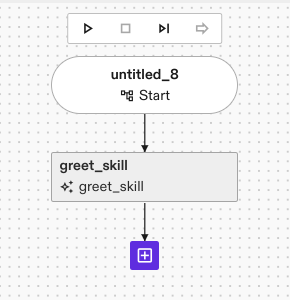
Stream the logs from the greet skill, and run the process. You should see logs like the following:
I0717 16:53:30.374737 140206313301760 greet_skill.py:147] Greeting World
I0717 16:53:30.385887 140206313301760 greet_skill.py:149] Got response: Hello World