Create a ROS-based Service
Platform services (called services on this page) are programs that offer stateful capabilities to skills. This guide walks through how to create a service from an existing ROS Node.
Prerequisites
Before attempting this guide you must:
- Deploy a solution
- Set up your development environment
- Connect VS Code to your cloud organization
- Know how to create skills
- Know how to create services
Install prerequisite software
You must have Docker Engine installed outside of the dev container. If you have used the dev container before, then you likely already have this installed.
If you intend to develop locally (outside of the devcontainer), you will need a ROS distribution installed.
While this guide is not distribution-specific, it is recommend to use ROS Jazzy in order to get the latest long term support (LTS) version.
It is necessary to compile the ROS SDK with clang-19. On Ubuntu, 24.04, this can be installed with:
sudo apt install clang-19
Why create a service with ROS
There are a few reasons to create a service with ROS:
- To integrate your applications or algorithms already developed in ROS
- To integrate device drivers that are already available in the ROS ecosystem
- To integrate applications or algorithms that are already available in the ROS ecosystem
While Python and C++ are officially supported languages of the Intrinsic SDK, this guide serves to provide a mechanism for ROS-based developers to quickly integrate their code in the platform. Platform services can be created using any language that is supported by Protocol Buffers.
Overview
The Create Your First Service guide taught that services need at least one OCI image. This guide shows how to use Docker to create it.
A service usually isn't very useful by itself; other skills and services may need to communicate with it. If our service offers a gRPC service, then other skills and services can communicate with our service using gRPC clients. Alternatively, our service can offer a ROS API for other skills and services to communicate via ROS Topics, Services and Actions. This guide walks through the process of creating a platform service that uses ROS to communicate with other platform services or skills. It does so in three parts:
- Create a ROS node
- Create a binary that configures the ROS node
- Create an OCI image that launches the binary
- Create a service that runs the OCI image when instantiated
Create a ROS node
The first step is to create a ROS node that can be used in the platform. We will implement a simple "listener" node that will subscribe to a topic and print to the console when messages arrive. To begin with, we will implement the ROS specific portions of the node.
Create the ROS workspace
First, create a workspace to contain the ROS code and SDK.
Second, use git to clone the contents of the sdk-ros repository as well as necessary submodules:
source /opt/ros/jazzy/setup.bash
mkdir -p ~/flowstate_ws/src
cd ~/flowstate_ws/src
git clone https://github.com/intrinsic-ai/sdk-ros
Install the necessary dependencies of the Intrinsic SDK:
cd ~/flowstate_ws
rosdep install --from-paths src -ri
Create a ROS package
Create a package to contain the node implementation:
cd ~/flowstate_ws/src
source /opt/ros/jazzy/setup.bash
ros2 pkg create --build-type ament_cmake --license Apache-2.0 sdk_examples_ros_services --dependencies intrinsic_sdk_ros rclcpp std_msgs
Your terminal will return a message verifying that the package was correctly created along with all necessary files and folders.
Write the subscriber node
Let's start with a ROS 2 C++ node named minimal_subscriber with no dependencies on the Intrinsic SDK.
The minimal_subscriber node subscribes to the topic topic.
When the subscriber receives a message on the topic topic, it will call the topic_callback function.
The topic_callback function then prints the contents to the console.
This subscriber node is based on the Writing a Simple Cpp Publisher and Subscriber guide.
Create a new directory called listener_service in the src directory of the new package.
mkdir ~/flowstate_ws/src/sdk_examples_ros_services/src/listener_service
Create minimal_subscriber.h in the listener_service folder with the following content:
// src/listener_service/minimal_subscriber.h
#ifndef MINIMAL_SUBSCRIBER_H_
#define MINIMAL_SUBSCRIBER_H_

#include <memory>

#include "rclcpp/rclcpp.hpp"
#include "std_msgs/msg/string.hpp"

class MinimalSubscriber : public rclcpp::Node {
 public:
  // Constructor
  explicit MinimalSubscriber(
      const rclcpp::NodeOptions& options = rclcpp::NodeOptions());

 private:
  void topic_callback(const std_msgs::msg::String::SharedPtr msg) const;
  rclcpp::Subscription<std_msgs::msg::String>::SharedPtr subscription_;
};

#endif  // MINIMAL_SUBSCRIBER_H_
Create minimal_subscriber.cc in the listener_service folder with the following content:
// src/listener_service/minimal_subscriber.cc
#include "minimal_subscriber.h"

using std::placeholders::_1;

MinimalSubscriber::MinimalSubscriber(const rclcpp::NodeOptions& options)
    : rclcpp::Node("minimal_subscriber", options) {
  subscription_ = this->create_subscription<std_msgs::msg::String>(
      "topic", 10, std::bind(&MinimalSubscriber::topic_callback, this, _1));
}

void MinimalSubscriber::topic_callback(
    const std_msgs::msg::String::SharedPtr msg) const {
  RCLCPP_INFO(this->get_logger(), "I heard: '%s'", msg->data.c_str());
}
Add a ROS main function
Create listener_service_main.cc in the listener_service folder with the following content:
// src/listener_service/listener_service_main.cc

#include "minimal_subscriber.h"
#include "rclcpp/rclcpp.hpp"

int main(int argc, char * argv[])
{
  rclcpp::init(argc, argv);
  rclcpp::spin(std::make_shared<MinimalSubscriber>());
  rclcpp::shutdown();
}
Compile the ROS node
Modify sdk_examples_ros_services/CMakeLists.txt to add the line add_subdirectory(src/listener_service) after the last find_package call:
# Root CMakeLists.txt
cmake_minimum_required(VERSION 3.8)
project(sdk_examples_ros_services)

if(CMAKE_COMPILER_IS_GNUCXX OR CMAKE_CXX_COMPILER_ID MATCHES "Clang")
  add_compile_options(-Wall -Wextra -Wpedantic)
endif()

# find dependencies
find_package(ament_cmake REQUIRED)
find_package(rclcpp REQUIRED)
find_package(std_msgs REQUIRED)
find_package(intrinsic_sdk_ros REQUIRED)

add_subdirectory(src/listener_service)

if(BUILD_TESTING)
  find_package(ament_lint_auto REQUIRED)
  ament_lint_auto_find_test_dependencies()
endif()

ament_package()
Create a new file called CMakeLists.txt in the listener_service directory and put the following content into it.
# src/listener_service/CMakeLists.txt
add_executable(listener_service
  listener_service_main.cc
  minimal_subscriber.cc
)

target_link_libraries(
  listener_service
  rclcpp::rclcpp
  ${std_msgs_TARGETS}
)

# Install the listener service
install(TARGETS
  listener_service
  DESTINATION lib/${PROJECT_NAME}
)
Run the following commands to build the node:
cd ~/flowstate_ws
colcon build --packages-up-to sdk_examples_ros_services --cmake-args -DCMAKE_C_COMPILER=/usr/bin/clang-19 -DCMAKE_CXX_COMPILER=/usr/bin/clang++-19
Running the node locally
On one terminal start a publisher:
source /opt/ros/jazzy/setup.bash
ros2 topic pub /topic std_msgs/msg/String 'data: Hello from ROS!'
On a second terminal, start the node:
source ~/flowstate_ws/install/setup.bash
ros2 run sdk_examples_ros_services listener_service
You should see this in the second terminal:
[INFO] [minimal_subscriber]: I heard: "Hello from ROS!"
Setup the node to be configured via Flowstate
Now that we have a functional standalone ROS node, let's modify it to work in the Flowstate platform.
To do this, we must make the following modifications:
- Create a proto definition to pass in the ROS configuration from Flowstate
- Create a default configuration
- Create a manifest file that points to the service resources
- Make the executable unpack the available configuration
- Generate a service manifest
Create a ROS Configuration Proto
In the listener_service folder, now create a new file ros_config.proto and put the following into it:
syntax = "proto3";

package ros;

message RosConfig {
  // ROS Command line arguments
  repeated string ros_args = 1;
}
Create a default configuration
The service needs a default configuration.
This is the configuration used if no configuration is provided when a service instance is added to a solution.
In the listener_service folder, create a new file listener_service_default_config.pbtxt and put the following content into it.
# proto-file: google/protobuf/any.proto
# proto-message: Any
[type.googleapis.com/ros.RosConfig] {
  ros_args: "-r"
  ros_args: "topic:=topic"  # an example of the topic remapping syntax
}
Create a Service manifest file
The service needs a manifest file that points to each of the resources that the service needs to load.
A manifest file is a text-formatted protobuf file.
The contents of the manifest file also determine the display name and documentation of the service as it appears to users.
In the listener_service folder, create a new file listener_service.manifest.textproto and put the following content into it.
# proto-file: https://github.com/intrinsic-ai/sdk/blob/main/intrinsic/assets/services/proto/service_manifest.proto
# proto-message: intrinsic_proto.services.ServiceManifest

metadata {
  id {
    package: "com.example"
    name: "listener_service"
  }
  vendor {
    display_name: "Intrinsic"
  }
  documentation {
    description: "A ROS listener service that subscribes to a ROS topic."
  }
  display_name: "Listener Service (ROS)"
}
service_def {
  real_spec {
    image {
      archive_filename: "listener_service.tar"
    }
  }
  sim_spec {
    image {
      archive_filename: "listener_service.tar"
    }
  }
}
assets {
  default_configuration_filename: "default_config.binarypb",
  parameter_descriptor_filename: "parameter-descriptor-set.proto.bin",
  image_filenames: ["listener_service.tar"]
}
Modify the executable to unpack the available configuration
The executable must now parse this configuration that will be passed as part of a runtime context:
// src/listener_service/listener_service_main.cc
#include <cstdlib>
#include <fstream>
#include <memory>

#include "intrinsic/resources/proto/runtime_context.pb.h"
#include "minimal_subscriber.h"
#include "rclcpp/rclcpp.hpp"
#include "ros_config.pb.h"

intrinsic_proto::config::RuntimeContext GetRuntimeContext() {
  intrinsic_proto::config::RuntimeContext runtime_context;
  std::ifstream runtime_context_file;
  runtime_context_file.open("/etc/intrinsic/runtime_config.pb",
                            std::ios::binary);
  if (!runtime_context.ParseFromIstream(&runtime_context_file)) {
    // Return default context for running locally
    std::cerr << "Warning: using default RuntimeContext\n";
    ros::RosConfig default_ros_config;
    runtime_context.mutable_config()->PackFrom(default_ros_config);
  }
  return runtime_context;
}

int main(int argc, char* argv[]) {
  auto runtime_context = GetRuntimeContext();
  ros::RosConfig ros_config;
  if (!runtime_context.config().UnpackTo(&ros_config)) {
    std::cerr << "Unable to unpack runtime_context\n";
    return EXIT_FAILURE;
  }

  // Get ROS arguments
  std::vector<const char *> ros_argv;
  for (int i = 0; i < argc; i++) {
    ros_argv.push_back(argv[i]);
  }

  // Insert --ros-args at beginning
  ros_argv.emplace_back("--ros-args");

  // Copy all other arguments
  for (int i = 0; i < ros_config.ros_args_size(); ++i) {
    ros_argv.emplace_back(ros_config.ros_args(i).c_str());
    std::cerr << "ROS argument: " << ros_argv.back() << "\n";
  }

  rclcpp::init(ros_argv.size(), ros_argv.data());
  rclcpp::spin(std::make_shared<MinimalSubscriber>());
  rclcpp::shutdown();
  return EXIT_SUCCESS;
}
The CMakeLists file must also be updated to accomodate generating these new files.
The SDK provides a CMake macro to perform the necessary steps to generate a service.
The intrinsic_sdk_generate_service_manifest creates the set of metadata files that are required for a service.
These files include the service manifest, the parameter definition, and the default parameters for when the service is added.
Update listener_service/CMakeLists.txt with the following content to create the service manifest, add new dependencies to the executable, and install files needed to create a platform service bundle.
# src/listener_service/CMakeLists.txt

# Create the service manifest
intrinsic_sdk_generate_service_manifest(
  SERVICE_NAME listener_service
  MANIFEST listener_service.manifest.textproto
  DEFAULT_CONFIGURATION listener_service_default_config.pbtxt
  PARAMETER_DESCRIPTOR ros_config.proto
  PROTOS_TARGET listener_service_protos
)
add_executable(listener_service_main
  listener_service_main.cc
  minimal_subscriber.cc
)

target_link_libraries(
  listener_service_main
  rclcpp::rclcpp
  ament_index_cpp::ament_index_cpp
  ${std_msgs_TARGETS}
  listener_service_protos
  intrinsic_sdk_cmake::intrinsic_sdk_cmake
)

add_dependencies(listener_service_main
  listener_service_manifest
  listener_service_default_config
)

# Install the listener service
install(
  TARGETS listener_service_main
  DESTINATION lib/${PROJECT_NAME}
)

# Install the proto descriptor database
install(FILES ${CMAKE_CURRENT_BINARY_DIR}/listener_service_protos.desc
        DESTINATION "share/${PROJECT_NAME}/listener_service"
)

# Install the service manifest
install(FILES ${CMAKE_CURRENT_BINARY_DIR}/service_manifest.binarypb
        DESTINATION "share/${PROJECT_NAME}/listener_service"
)
# Install the default configuration
install(FILES ${CMAKE_CURRENT_BINARY_DIR}/default_config.binarypb
        DESTINATION "share/${PROJECT_NAME}/listener_service"
)
Build the ROS package again
cd ~/flowstate_ws
colcon build --packages-up-to sdk_examples_ros_services --cmake-args -DCMAKE_C_COMPILER=/usr/bin/clang-19 -DCMAKE_CXX_COMPILER=/usr/bin/clang++-19
Build a service OCI container
Once the source is prepared, a service container can be built and saved to be uploaded to the platform. To help with this, scripts are provided to automate the common tasks.
To begin with, ensure that the docker engine is setup correctly:
cd ~/flowstate_ws
./src/sdk-ros/scripts/setup_docker.sh
This will additionally create an images directory for outputs to be stored.
Build the container by running the following command:
cd ~/flowstate_ws
./src/sdk-ros/scripts/build_container.sh \
  --service_package sdk_examples_ros_services \
  --service_name listener_service
Create the service bundle by running the following command:
cd ~/flowstate_ws
./src/sdk-ros/scripts/build_bundle.sh \
  --service_package sdk_examples_ros_services \
  --service_name listener_service
Install your service
Once the service container is built and saved, save the address of the service bundle:
export SERVICE_BUNDLE=~/flowstate_ws/images/listener_service.bundle.tar
Save your organization name as an environment variable.
export INTRINSIC_ORGANIZATION=intrinsic@intrinsic-prod-us
The service may installed using a solution's context identifier.
There are two ways of retrieving the context of a running solution.
First, the context identifier is available as part of the Flowstate URL after clusters/
For example, if the solution URL is https://flowstate.intrinsic.ai/content/projects/intrinsic-prod-us/uis/frontend/clusters/vmp-8d29-5qhzl0nf, then context=vmp-8d29-5qhzl0nf.
Alternatively, the context identifier is available via the inctl tool by running:
inctl cluster list --org $INTRINSIC_ORGANIZATION
Once retrieved, export the context to be used in later steps:
export INTRINSIC_CONTEXT=vmp-8d29-5qhzl0nf
Run the following command to install the service into your solution.
inctl asset install --org $INTRINSIC_ORGANIZATION --cluster $INTRINSIC_CONTEXT $SERVICE_BUNDLE
When the command is finished, look for the text near the end that looks like this:
2024/06/25 00:51:07 Finished installing the service: "com.example.listener_service.0.0.1+2584488436020bc0c19dcaaa86fd1434c2869b3f28dc91e4fcd37ebbb69c3450"
The end of that line is the installed service ID. Store the installed service ID in an environment variable.
MY_INSTALLED_SERVICE=com.example.listener_service.0.0.1+2584488436020bc0c19dcaaa86fd1434c2869b3f28dc91e4fcd37ebbb69c3450
Add a service instance
After the service has been installed, an instance of that service may be added to a solution.
To add a service, use either the inctl command line tool or the Flowstate frontend.
Add with the inctl tool
Run the following command to add an instance of your installed service.
export SERVICE_NAME=listener_service
inctl service add $MY_INSTALLED_SERVICE --name=$SERVICE_NAME --org $INTRINSIC_ORGANIZATION --cluster $INTRINSIC_CONTEXT
If a non-default configuration is required, use the --config flag to pass a binary-serialized Any proto containing the configuration.
Add with the Flowstate Editor
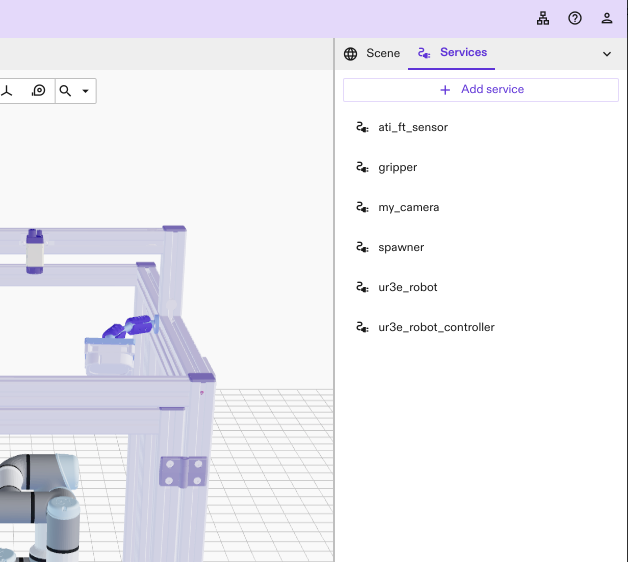
- In the Flowstate Editor, click on the Services tab to view the list of services in your solution
-
Click the Add Service button
-
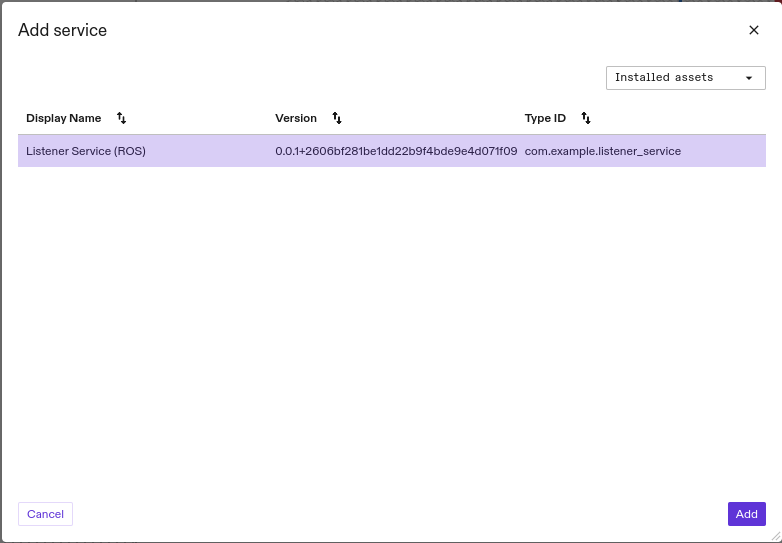
Select Listener Service from the Installed assets list and click Add
- Configure the listener service:
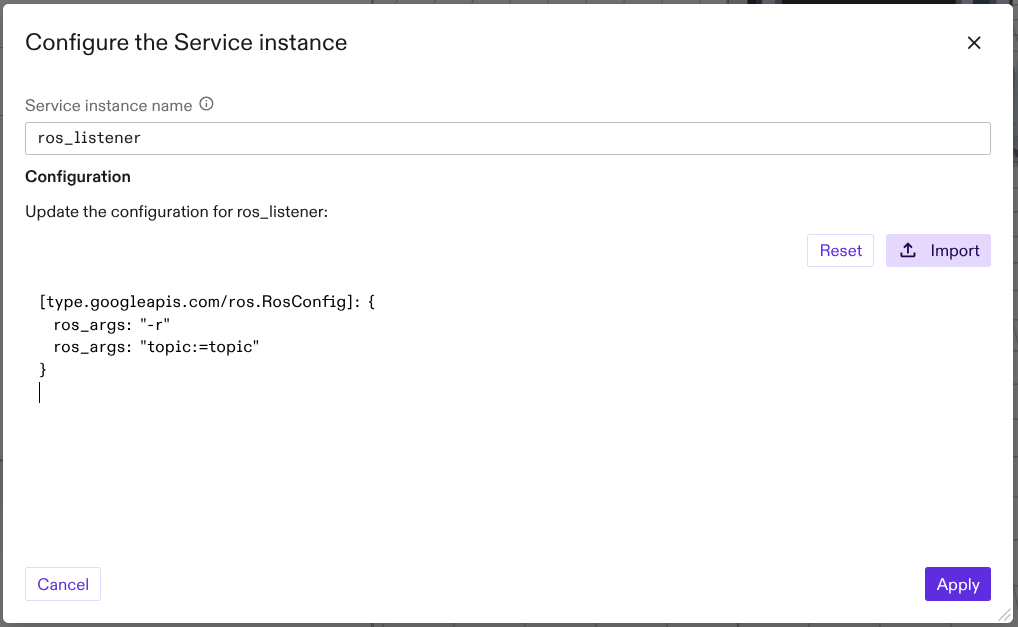
Give the service a name, such as listener_service
If desired, provide an alternative configuration to set the service's starting parameters.
- Click Apply
When the service appears in the service list, it has been successfully installed in the solution.
View Service Logs
View the logs from the running service using the inctl logs command:
inctl logs --org $INTRINSIC_ORGANIZATION --context $INTRINSIC_CONTEXT --service $SERVICE_NAME --follow